Creating A Bookmark
A step by step example with Yahoo Stock Quote
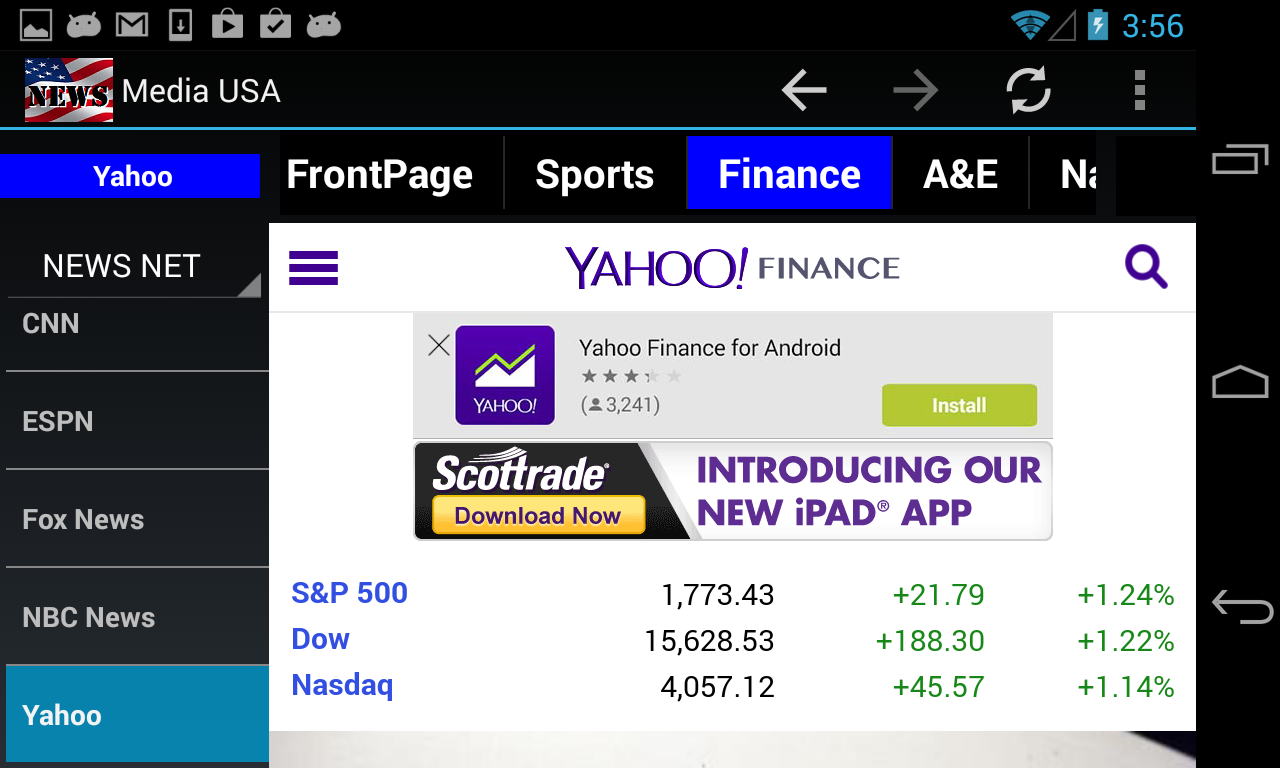
Select "NEWS NET" from the news source spinner.
Scroll up the list until you see "Yahoo", then click on it.
Click the "Business" menu (or "Finance" menu of older version of the app as shown below) on the top menu bar.
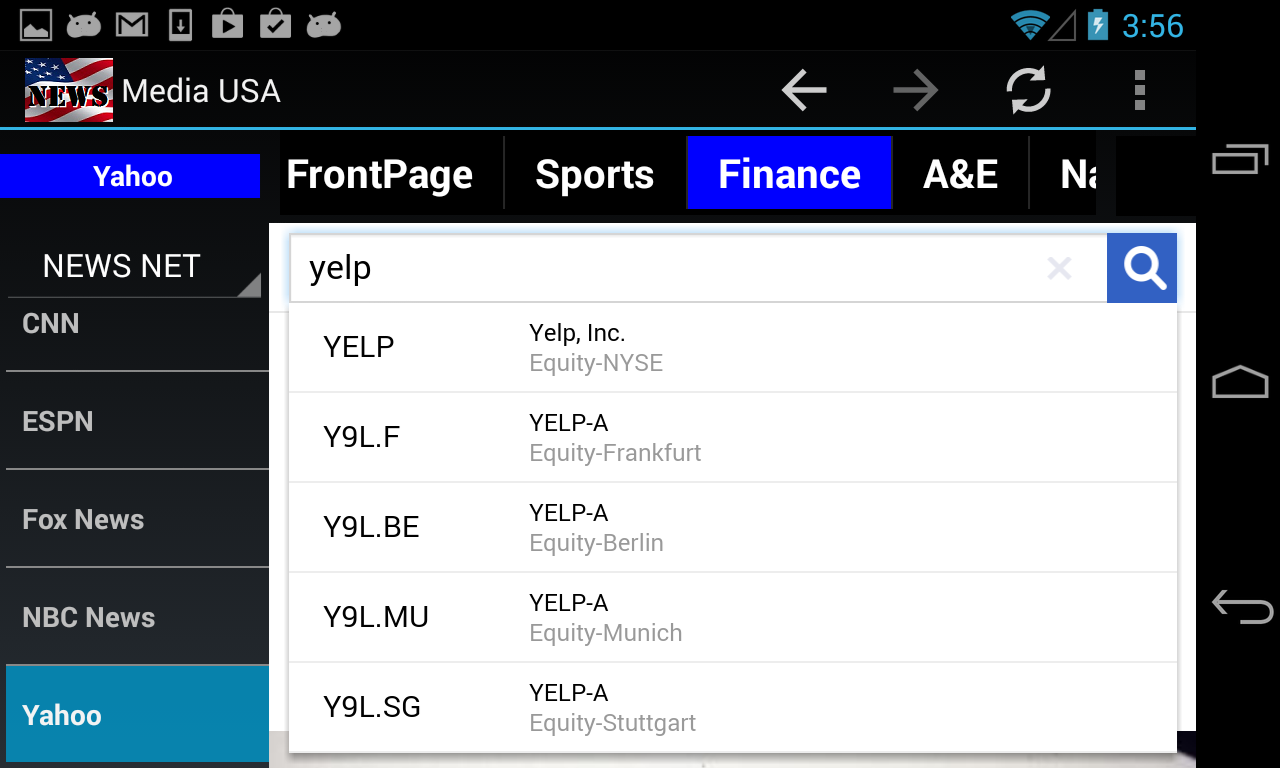
Click on Yahoo search icon and type "yelp".
Then click the item on the list that shows YELP Yelp, Inc.
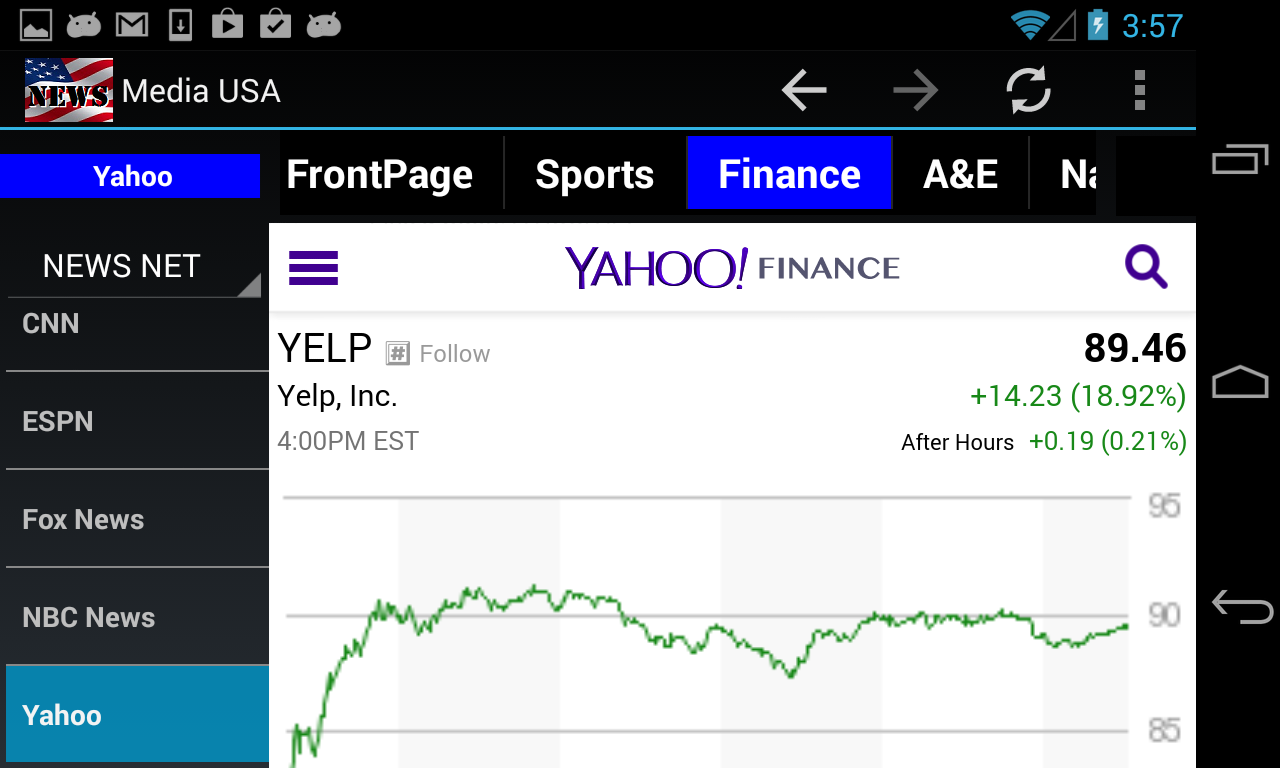
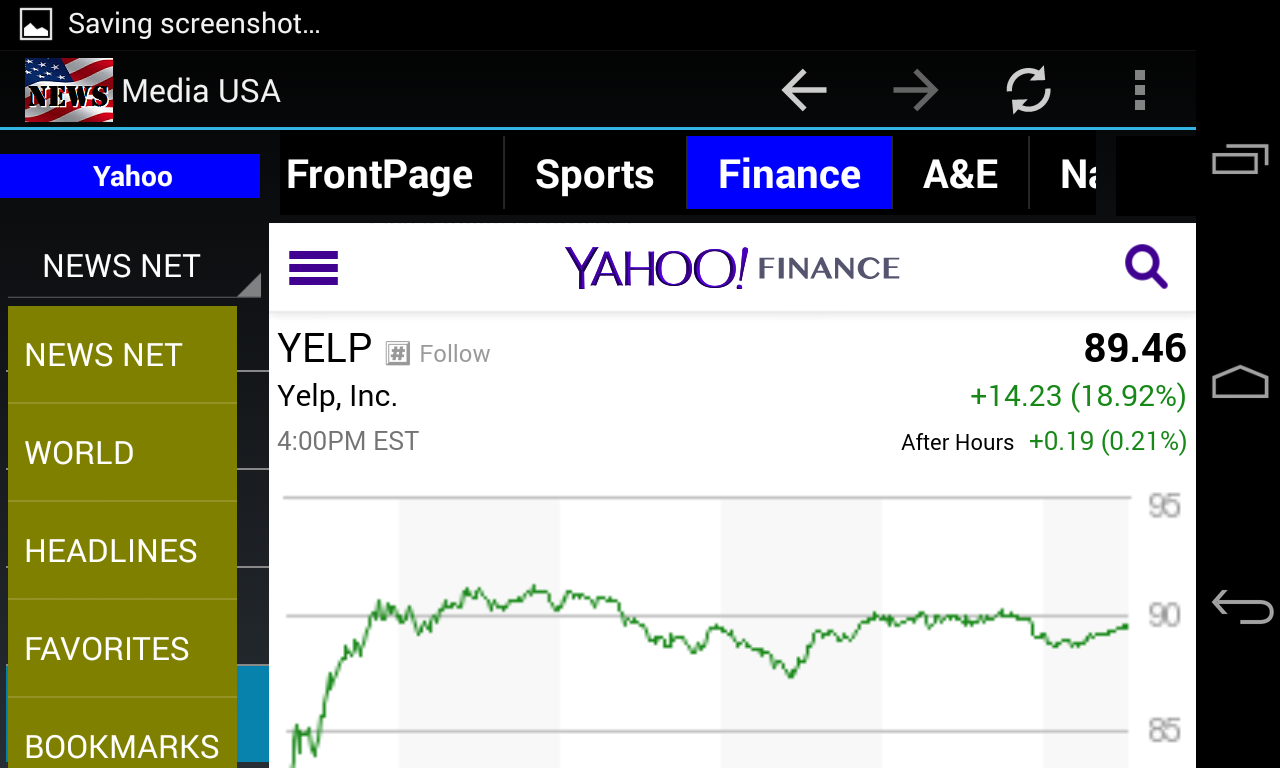
The result shows the stock quote and info of Yelp, Inc.
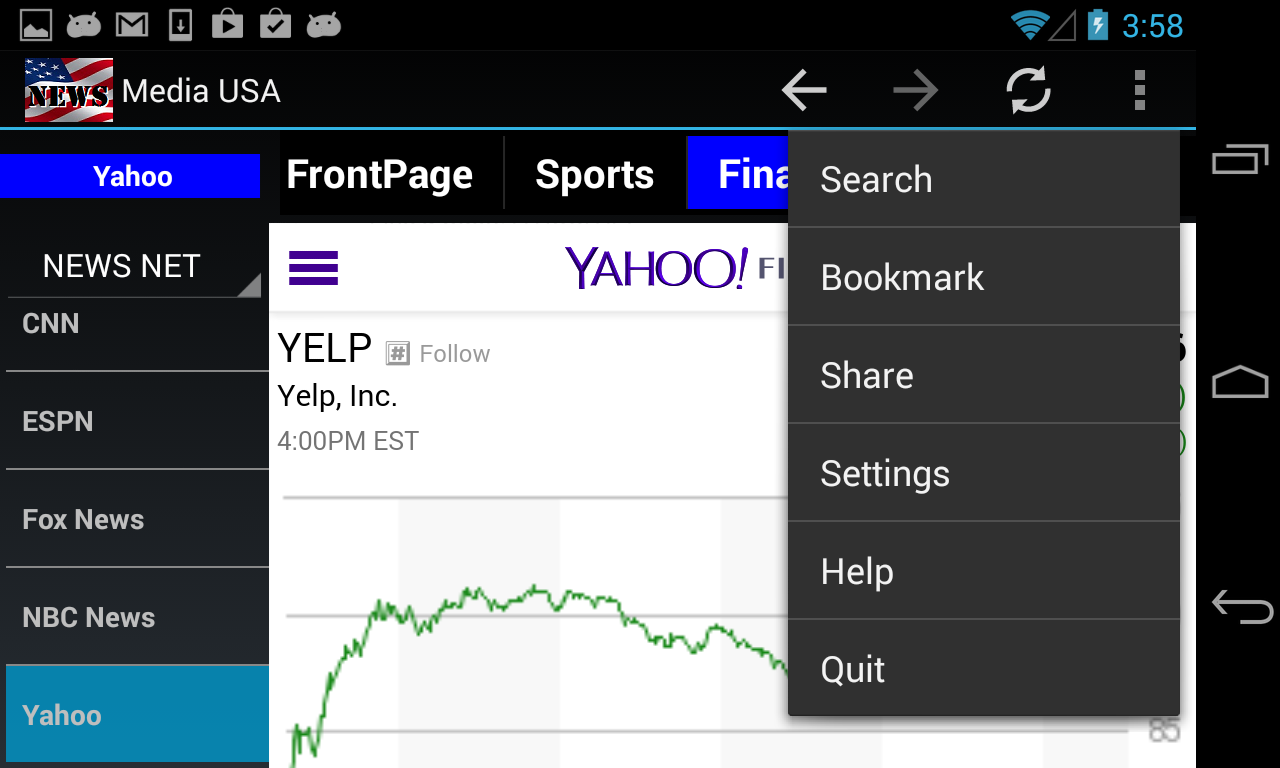
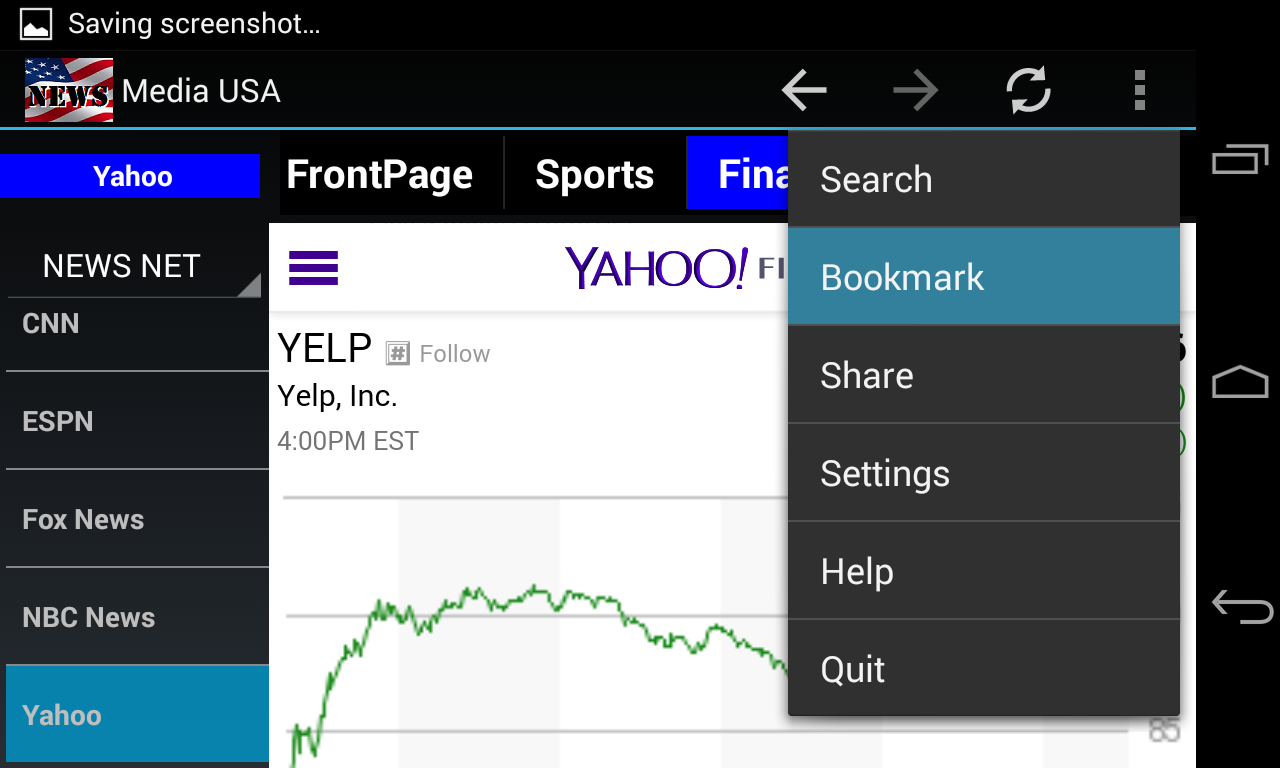
Click on the Overflow button (3 vertical dots) in the top-right corner
or the drop-down menu button of your device to see more of the available menus.
Click on "Bookmark" from the dropdown menu list.
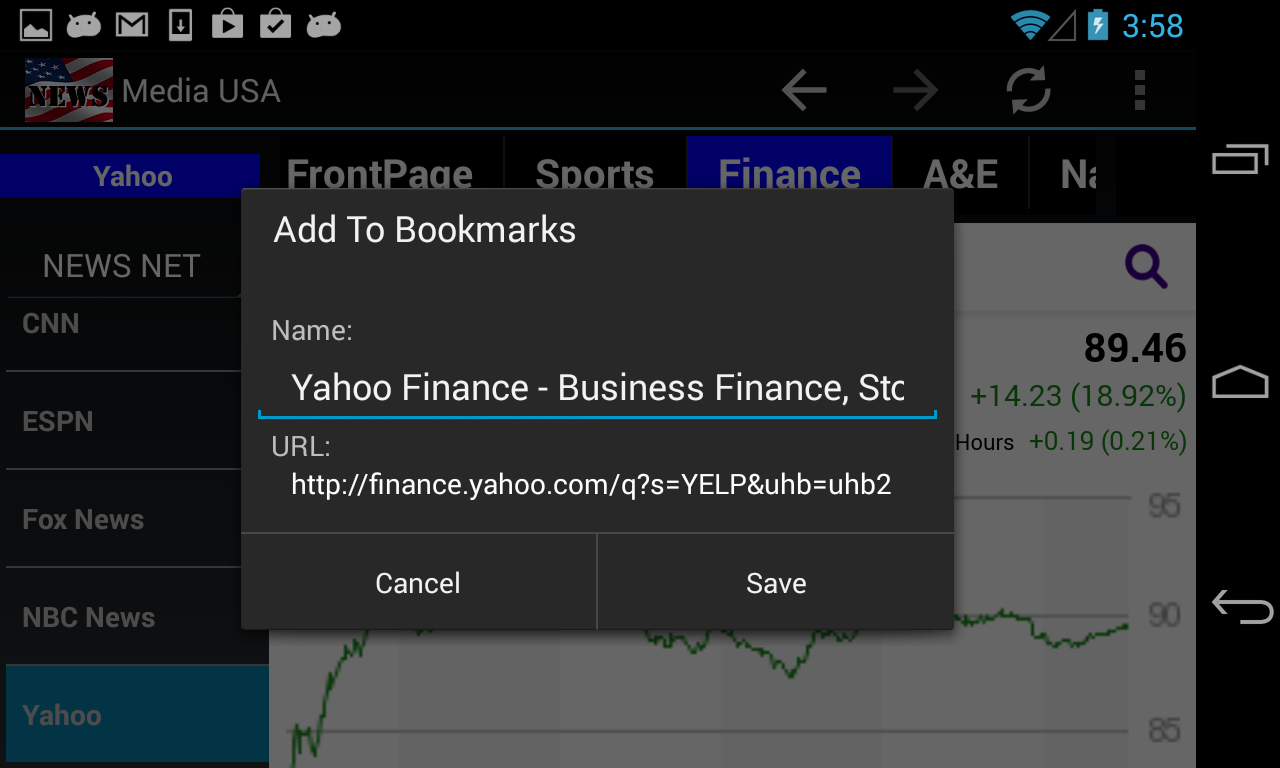
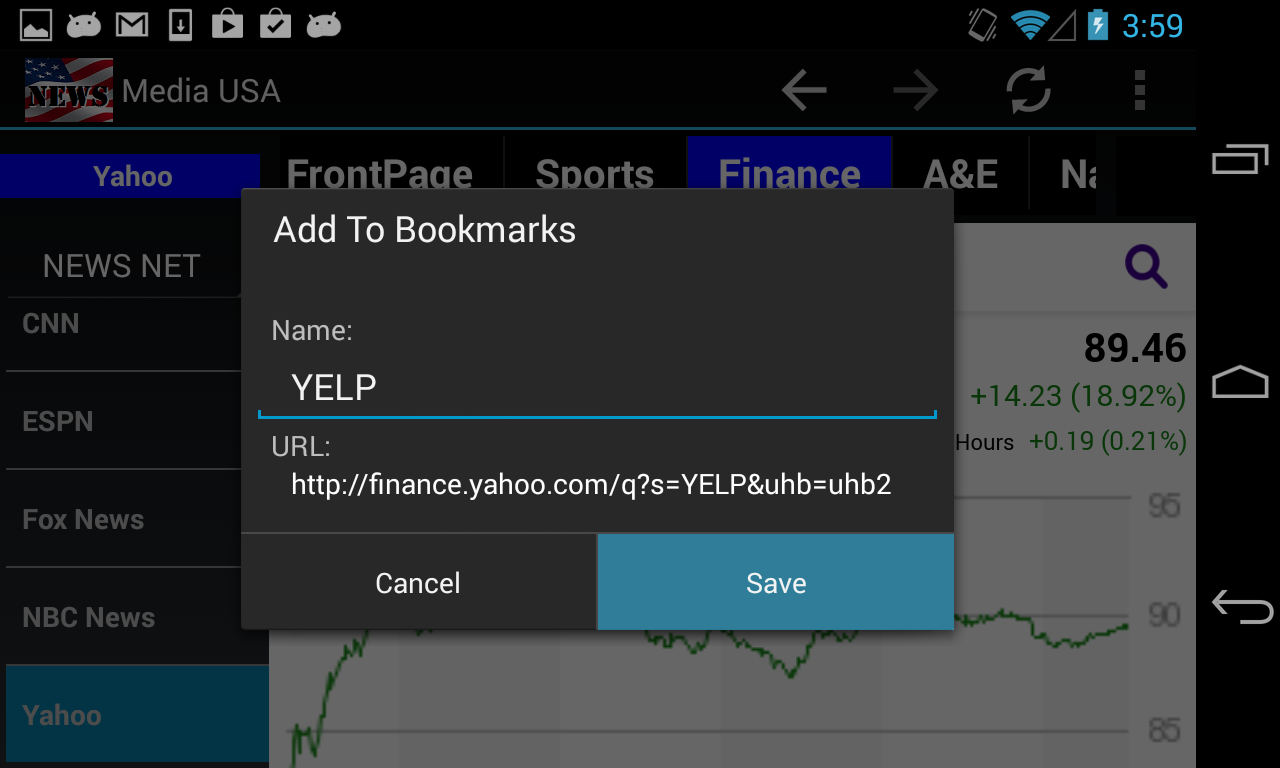
"Add To Bookmarks" dialog is shown.
Click on the word "Yahoo Finance" to rename the bookmark.
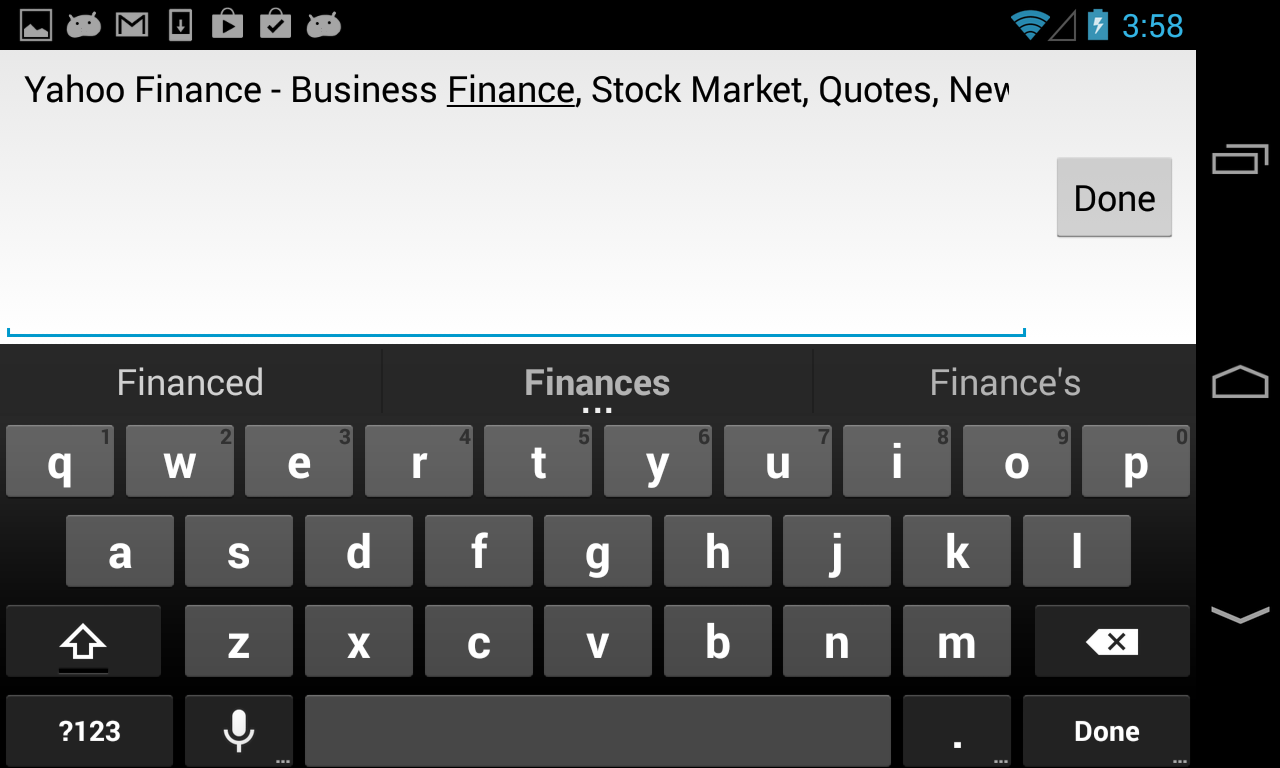
Text editing dialog is shown to modify the name.
Click on the right most character of the name.
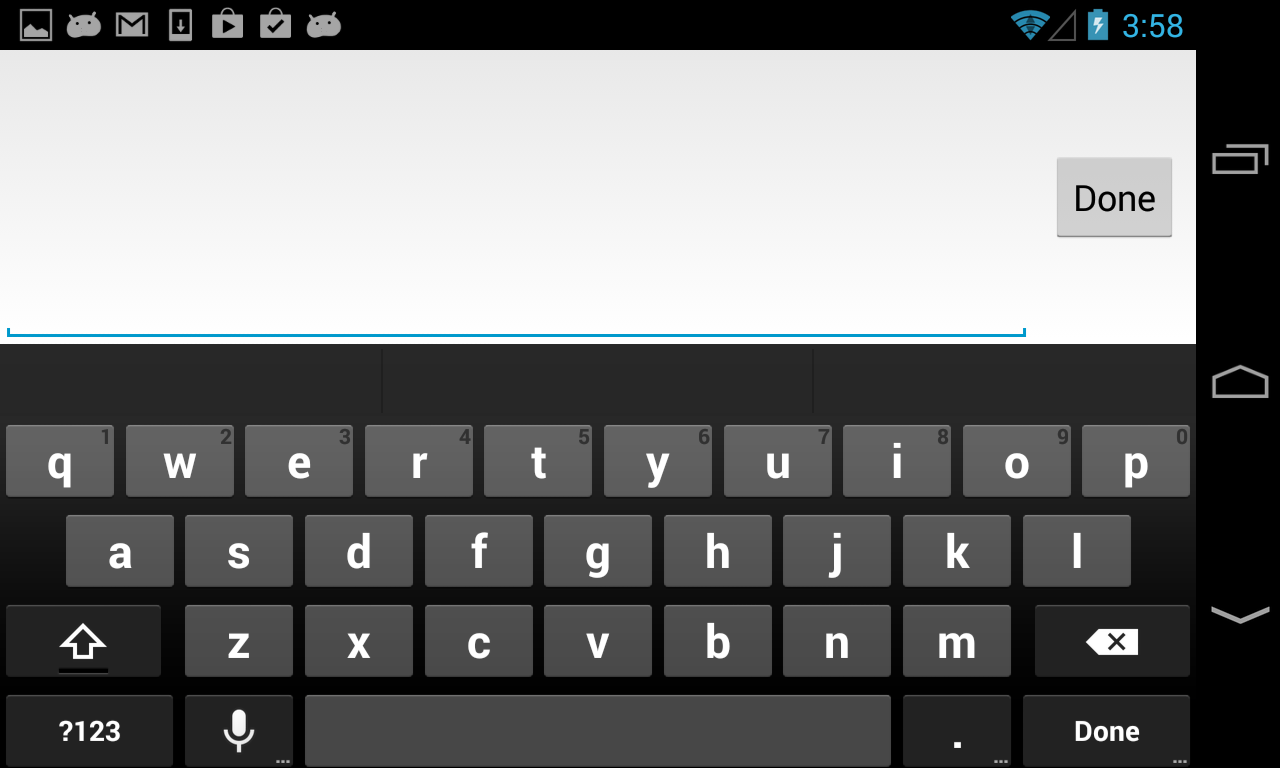
Use the Back Key from the on-screen keyboard to erase the default name.
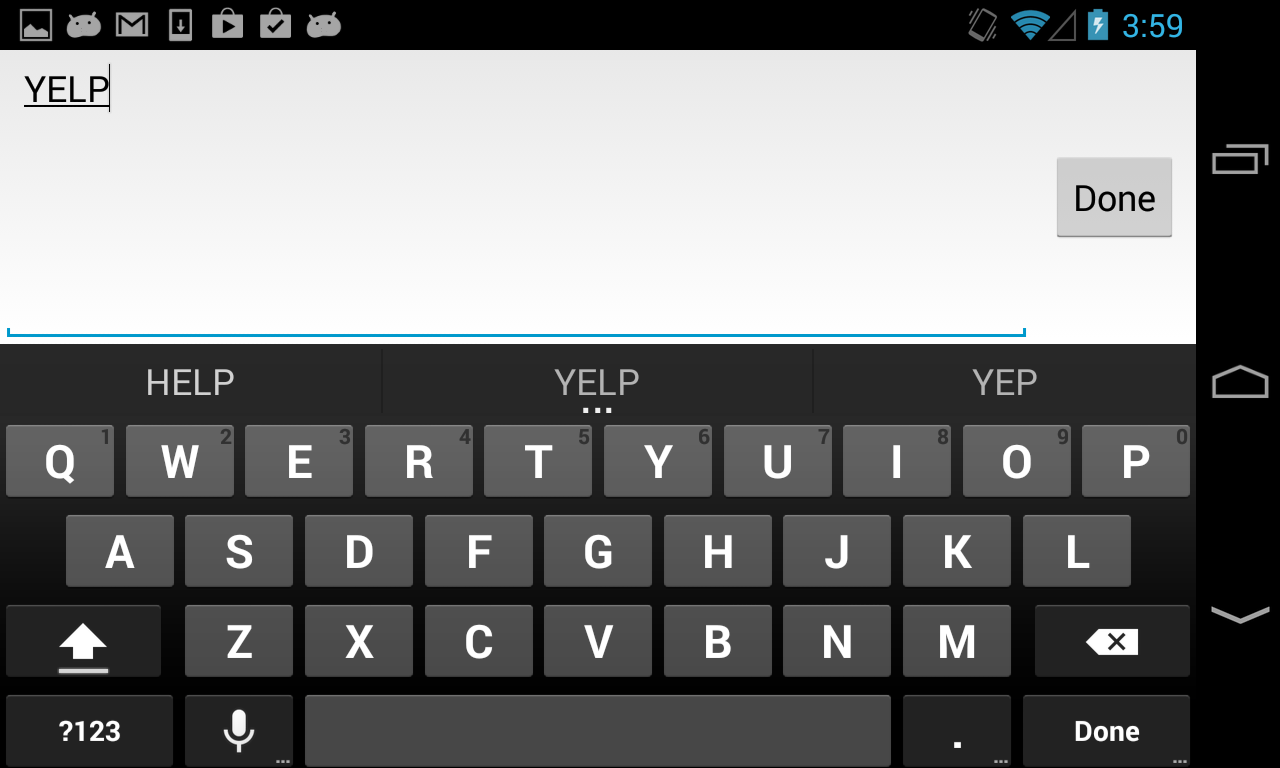
Use the on-screen keyboard to type the word "YELP".
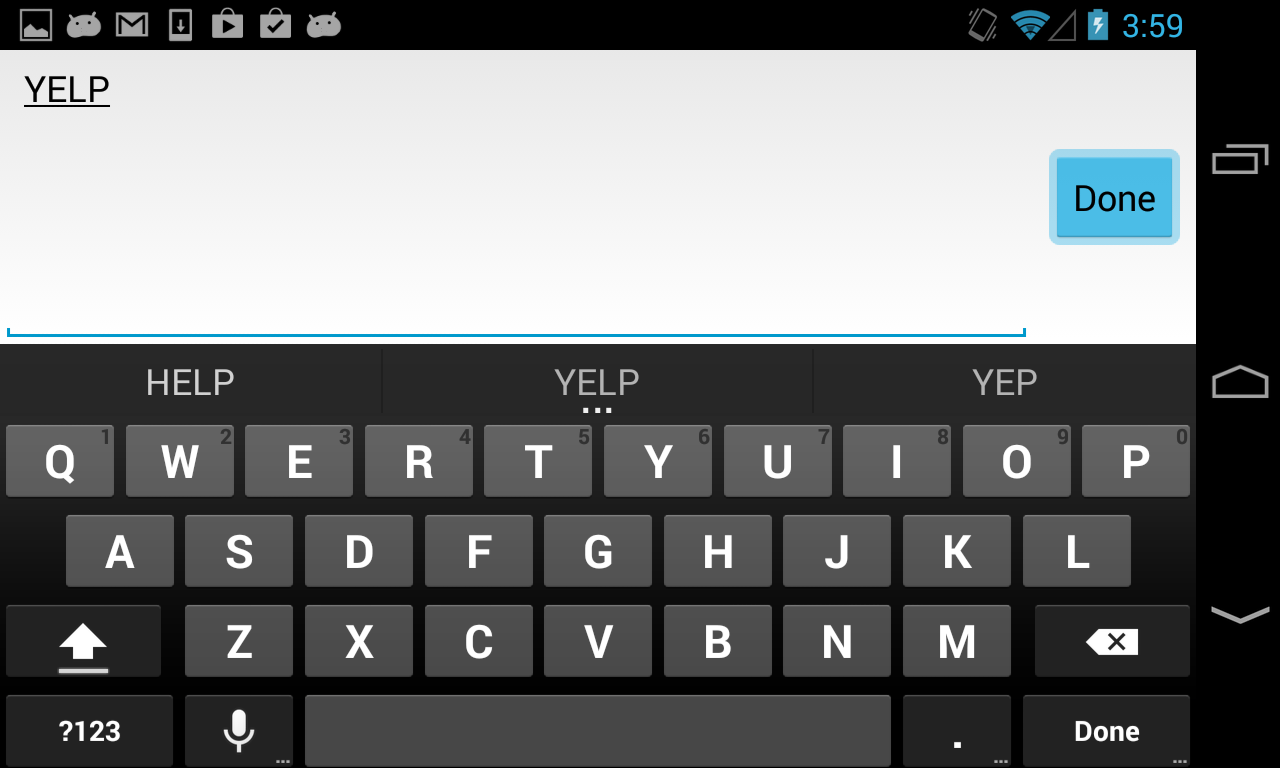
Click "Done" button.
"Add To Bookmarks" dialog shows the name changed to "YELP".
Click on "Save" button to save the bookmark.
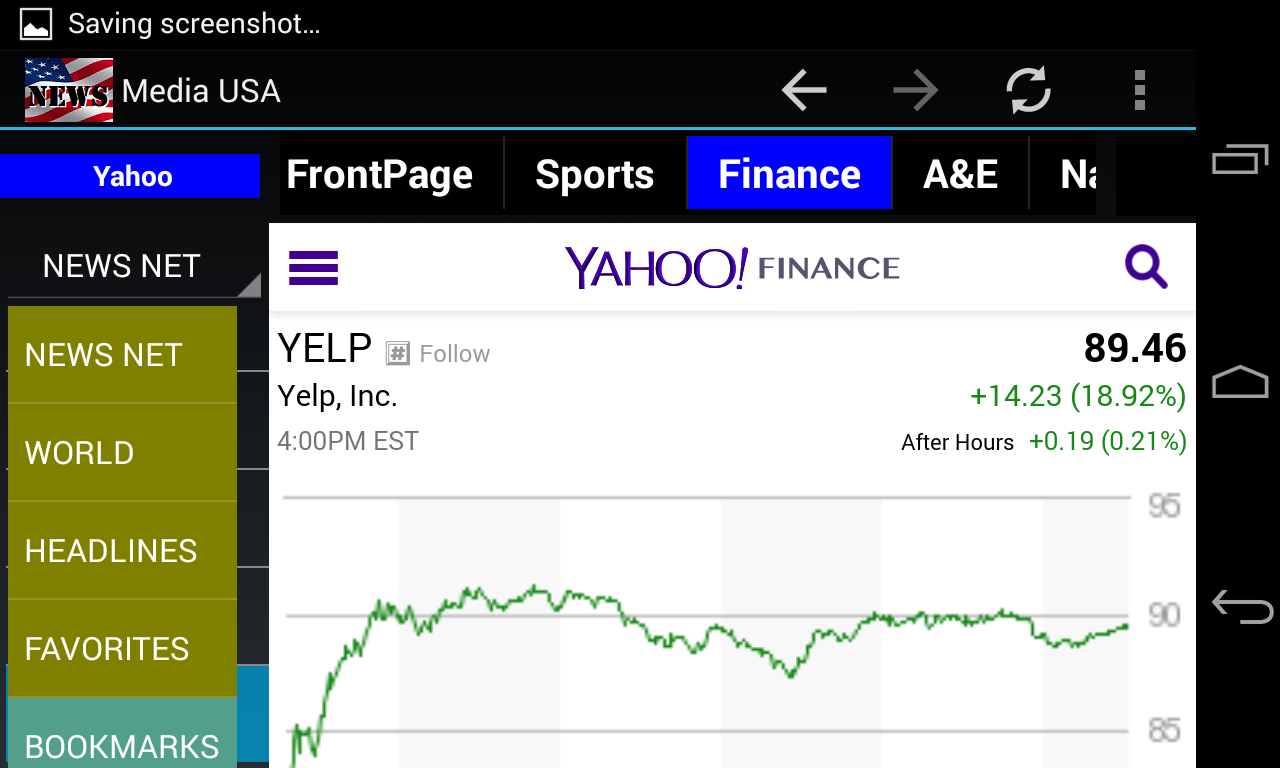
To see if your bookmark has been saved, click on the "NEWS NET" to show
the list of other news source types.
Select "BOOKMARKS" from the drop-down list.
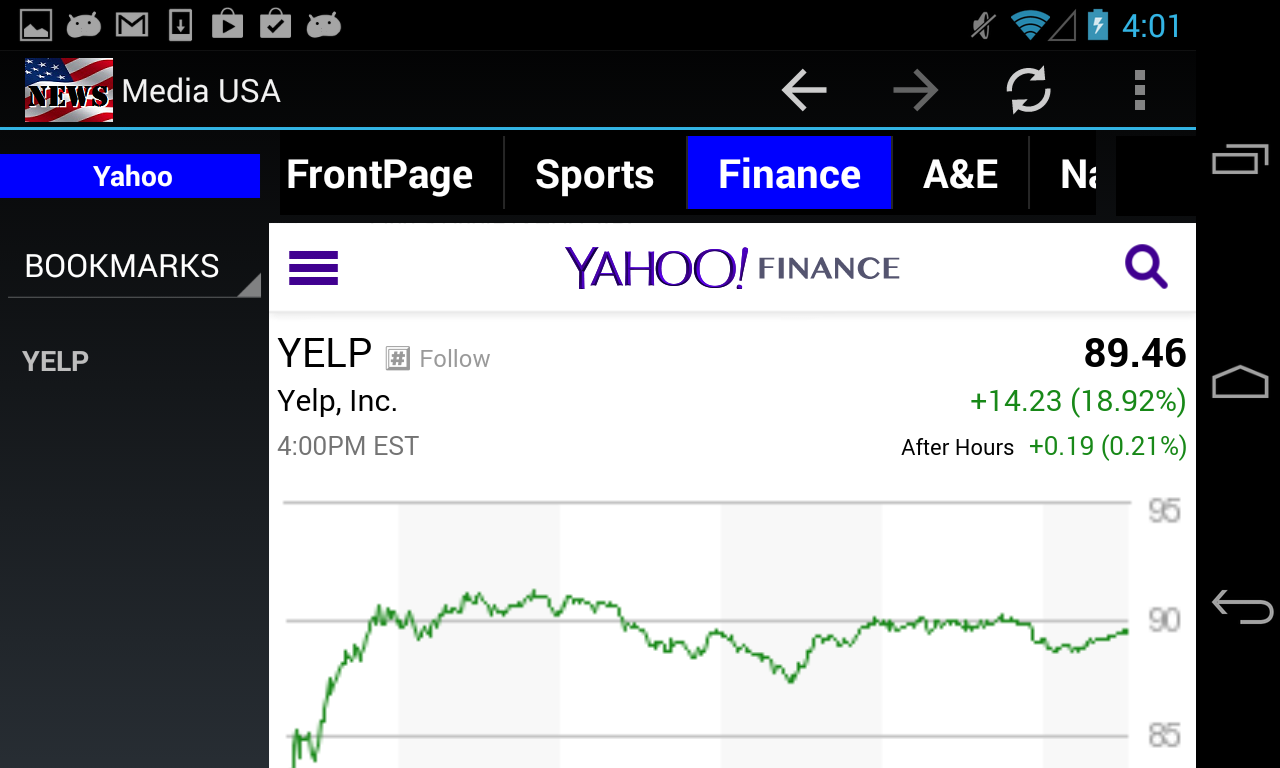
Your "YELP" bookmark is on the "BOOKMARKS" list.
Now, try to add a few more stock quotes to your bookmarks.
Then, try clicking on those bookmarks for fast quotes.