It is easy to browse through news from
one source to another because most of the major news categories are
provided at the top of your screen. No more searching for
links
to Sports, or Life Style, or even Obituaries section on any of the news
sources.
The news category menus, from Front Page, Sports, Business,
A&E (Arts & Entertainment), to Comics, Obituaries
&
Horoscopes are scrollable.
Same with the news sources that are listed at the left side
of your screen. This list is scrollable too.
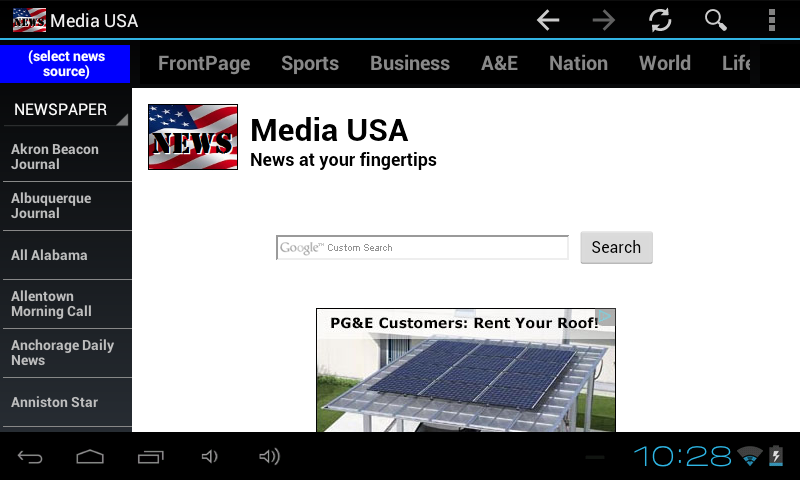
When you run the app for the first time, you would
see "(select news source)" in your top-left corner of your
screen.
This means that you don't have any selected news source to
begin
with. All the news categories are grayed out.
Nothing will
happen if you select any grayed out news category. It starts
with
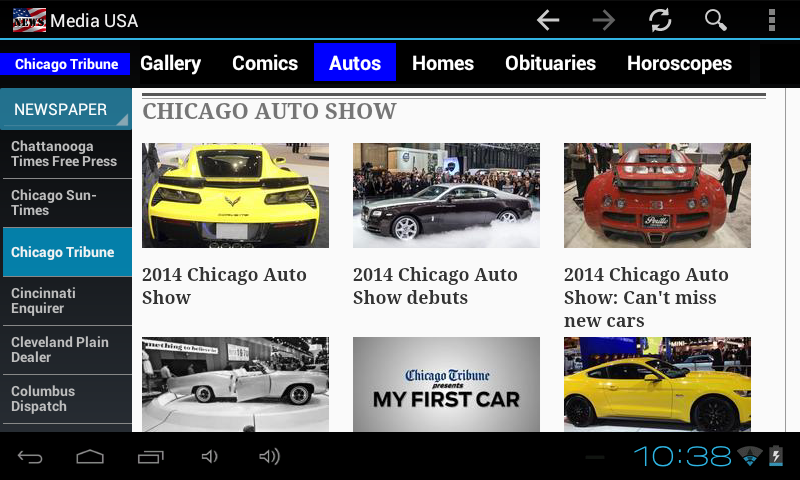
NEWSPAPER listing at the left side of your screen as seen below.
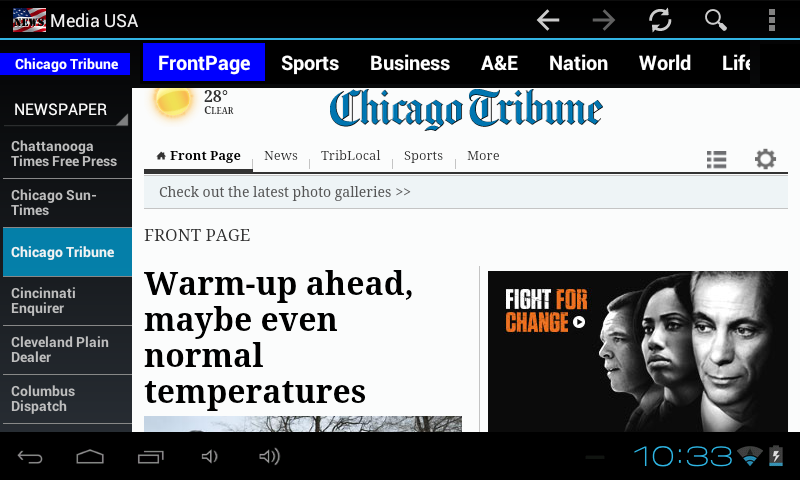
The newspaper listing is in alphabetical order. The picture
below
shows the listing has been scrolled up a bit and "Chicago
Tribune"
newspaper got selected. The available news categories of
Chicago
Tribune are enable. If there is no news category selected,
the default is the "Front Page."
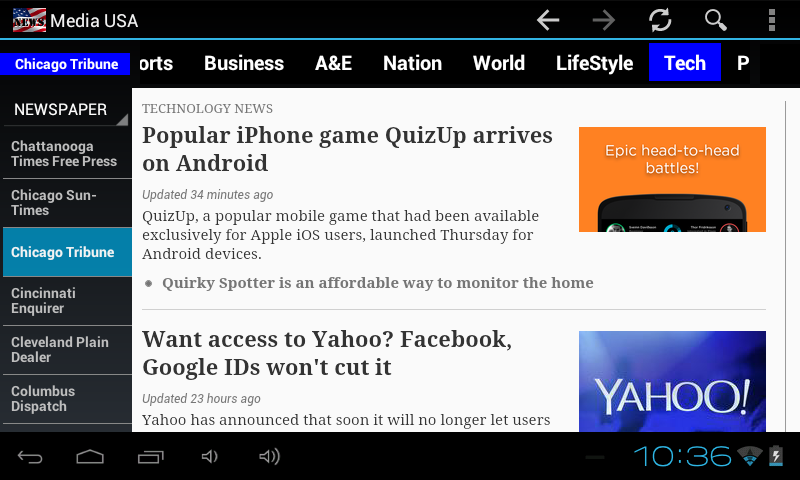
The following picture shows that news categories listing has
been
swiped from right to the left and the "Tech" category has been
selected. The page shown is from the Technology section of
Chicago Tribune.
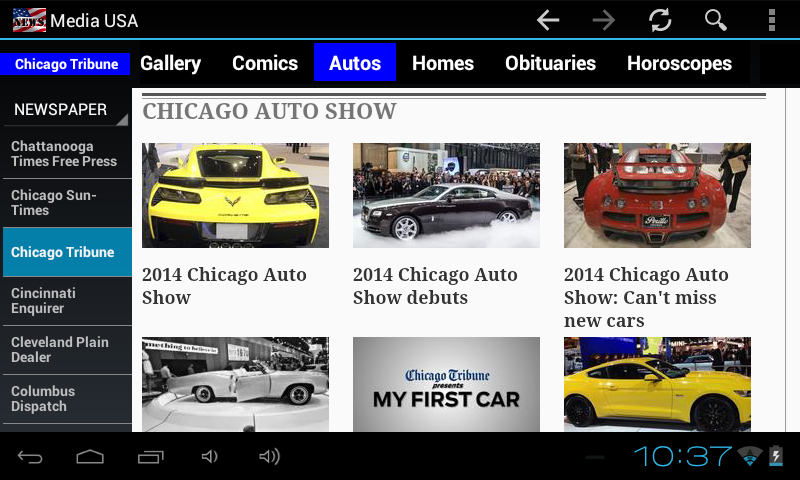
Page from the "Autos" section.
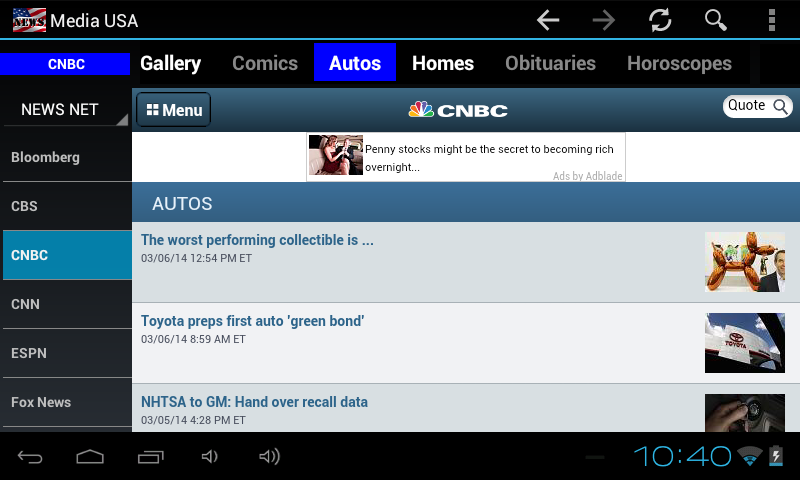
The following pictures show the page of the Autos section of CNBC from
the News Network list.
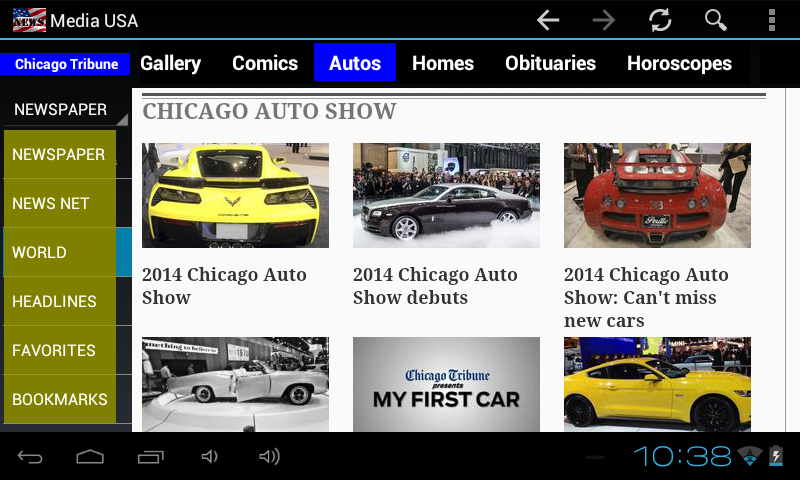
First, click on "NEWSPAPER" to show the dropdown of the news source
type.
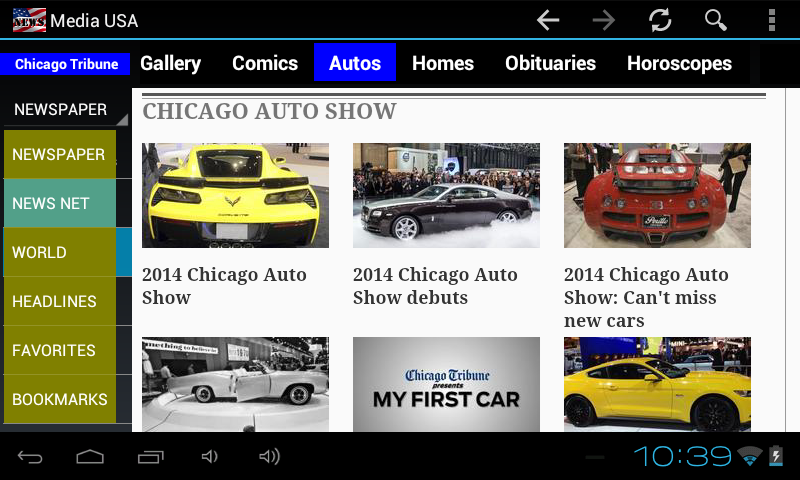
A dropdown shows types of news sources.
Then select the NEWS NET from the dropdown.
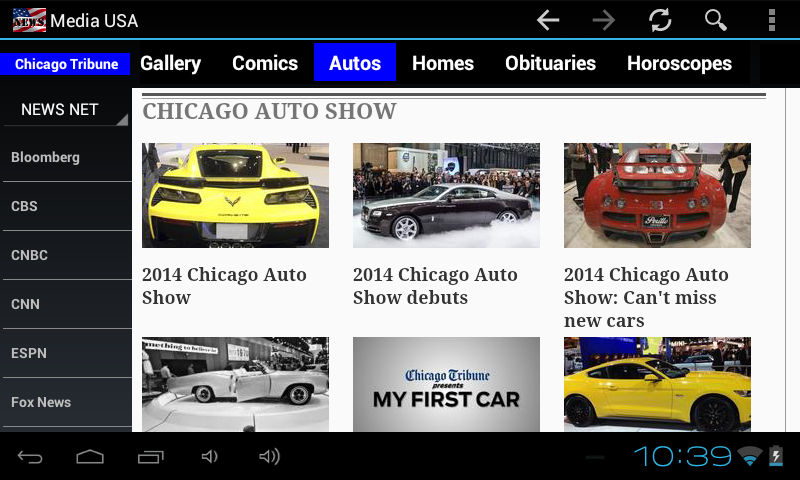
It will show a listing of the news source of the NEWS NETWORK.
Select CNBC. Since the "Autos" category stays selected, the
Autos section of CNBC will be shown.
Want to read more of the Autos news? Just click on other news
sources. So easy.