Creating Your Own News Filter of Your Favorite Listing
Use Filters to simplify your Topics menu and news source listing. This way you could avoid long listings and scrolling through things that you don't care much.
The easiest way is to create your filter one at a time by using Add
Filter menu. To
have your filter working, you should have at least one Topic menu, such
as "Business", shown at the top menu bar. If you don't see any Topic
at all, go to Settings / Manage Topics and
show the Topics which filters you want to set up.
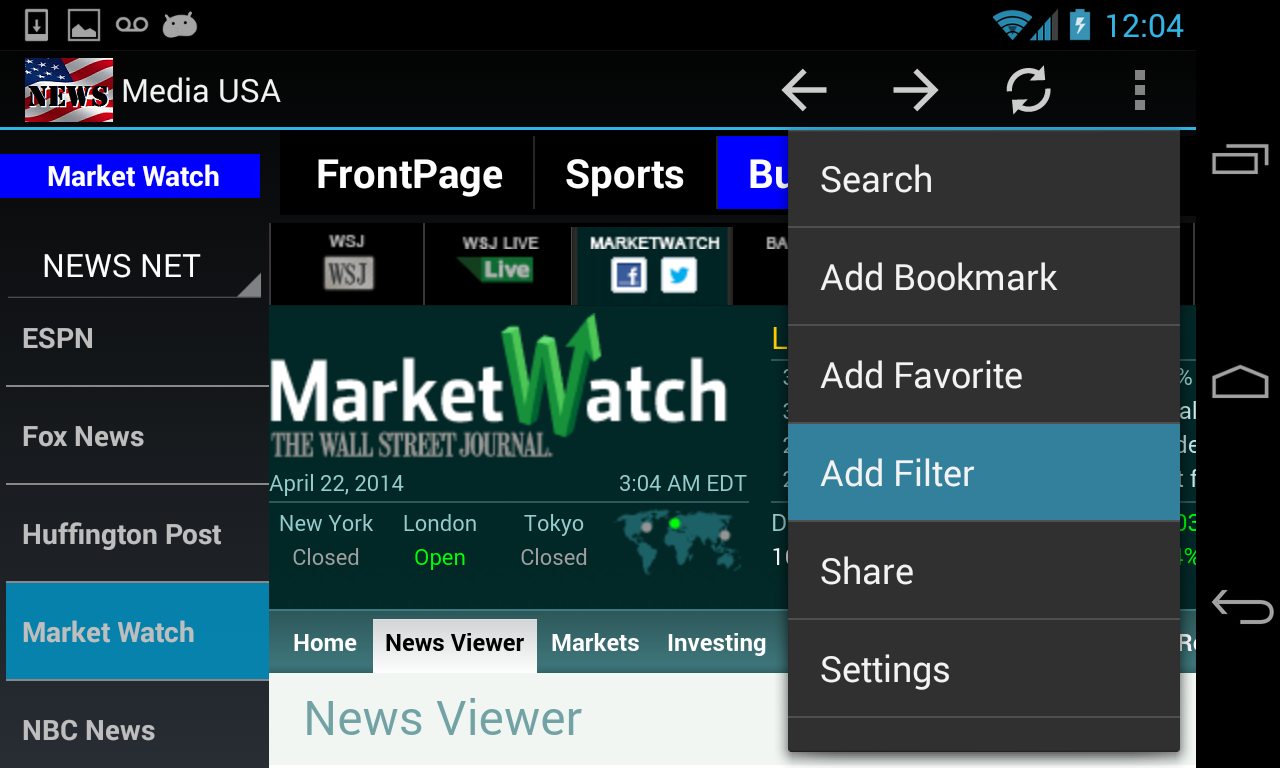
When you love a content of a topic from the existing news
source, click on the Add Filter menu.
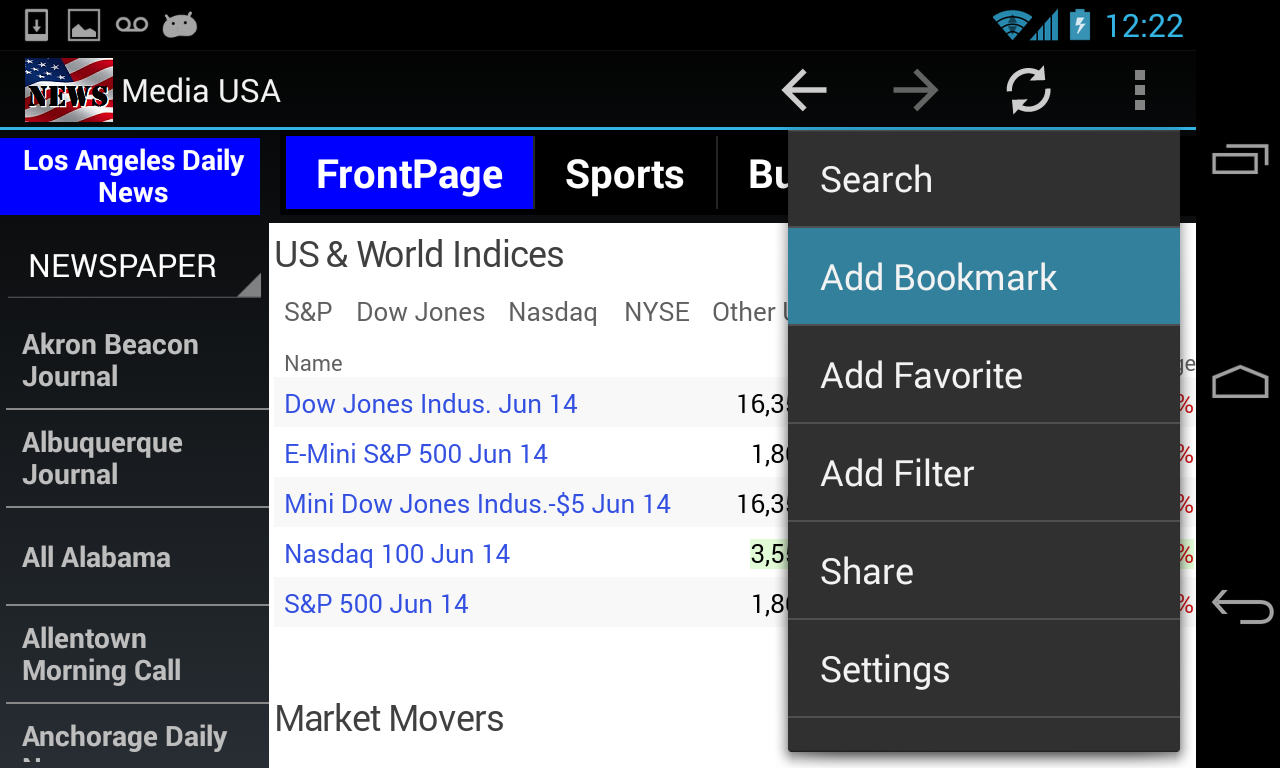
If you want to add a random content to a filter, use Add
Bookmark menu.
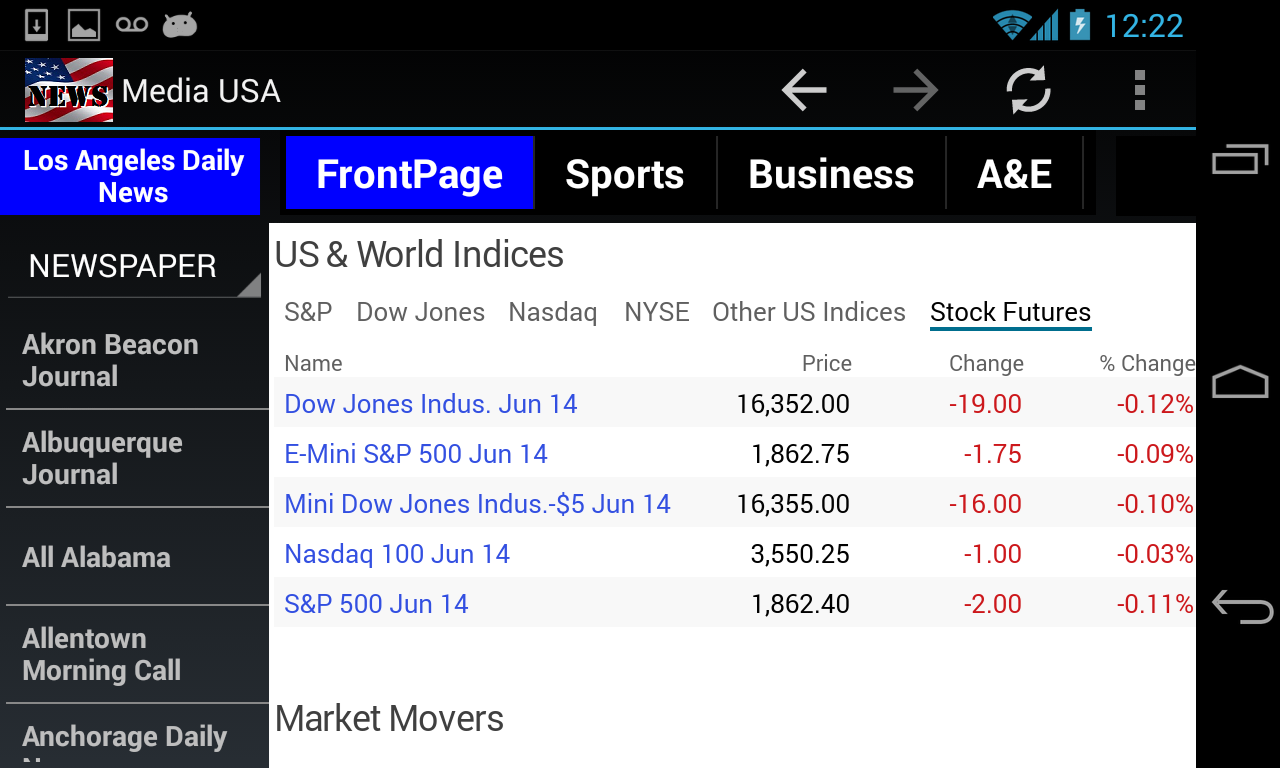
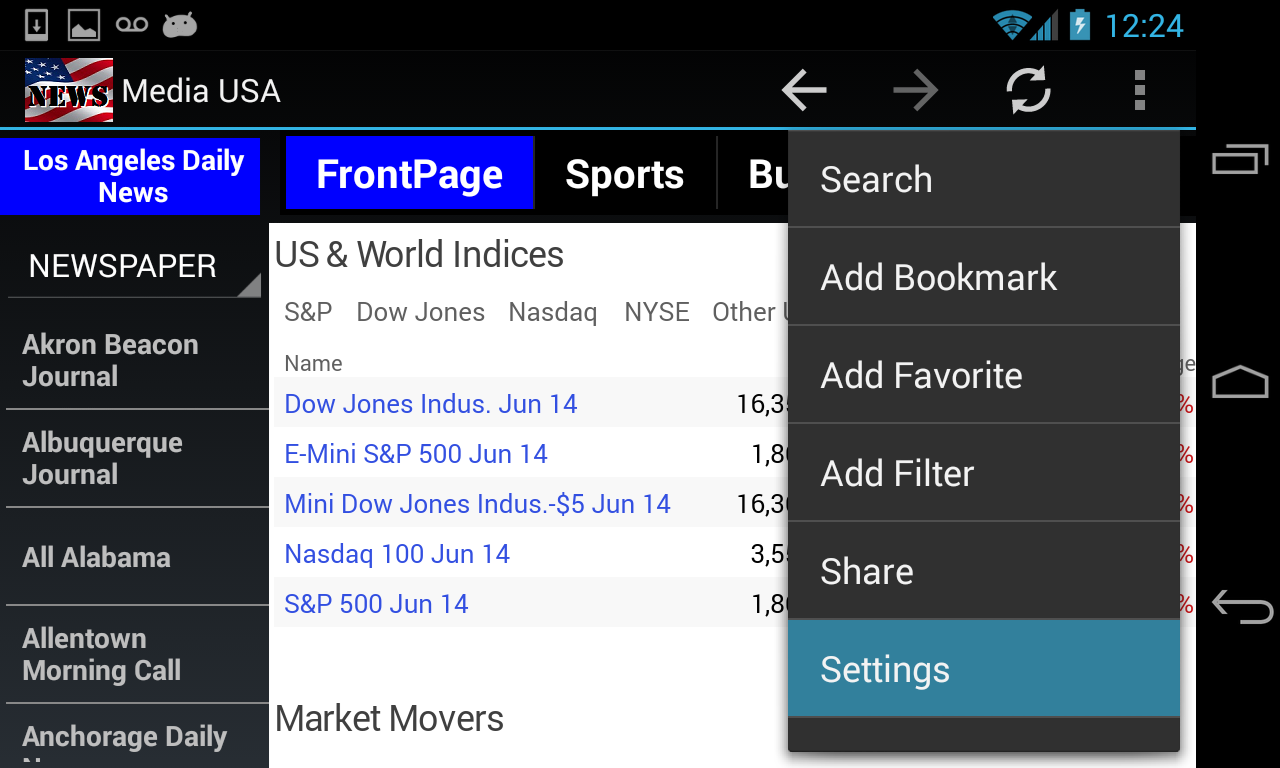
For example, below is a Stock Futures page that you want to add to
Business filter.
Use Add Bookmark menu to add a random web content to the Bookmarks first.
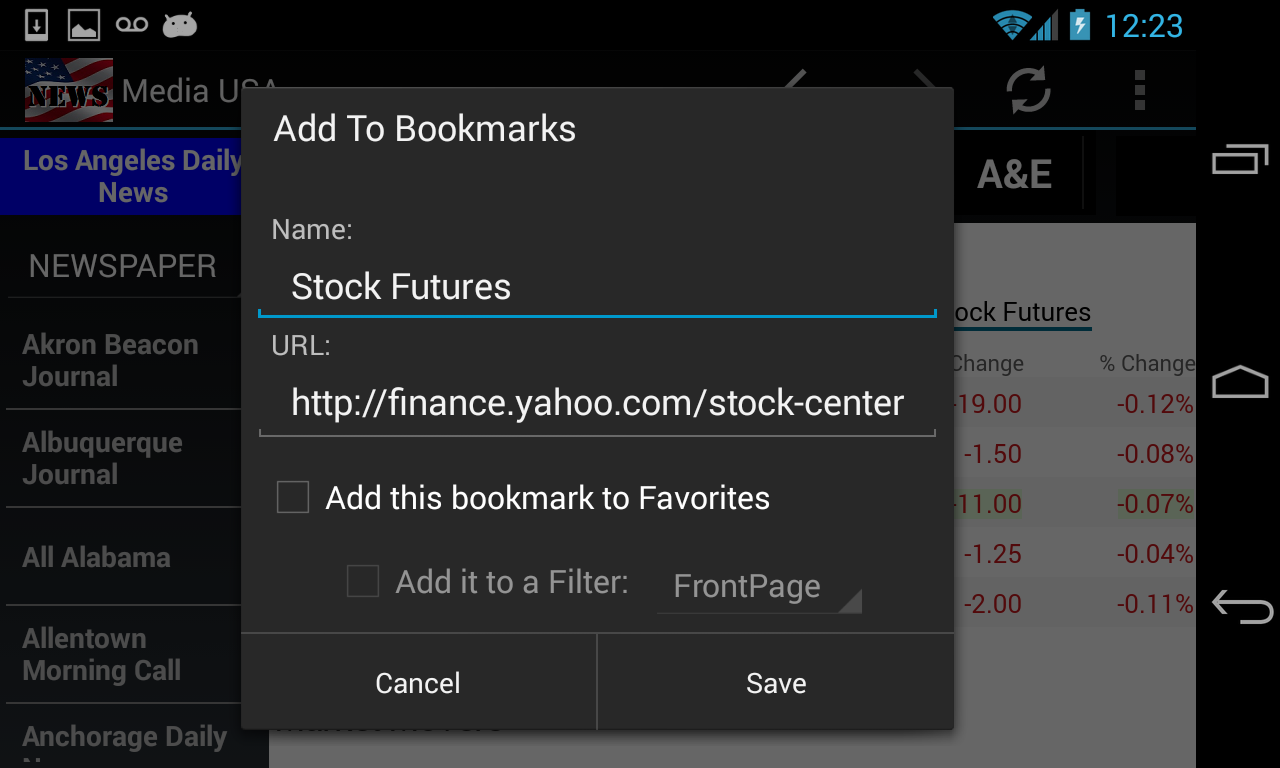
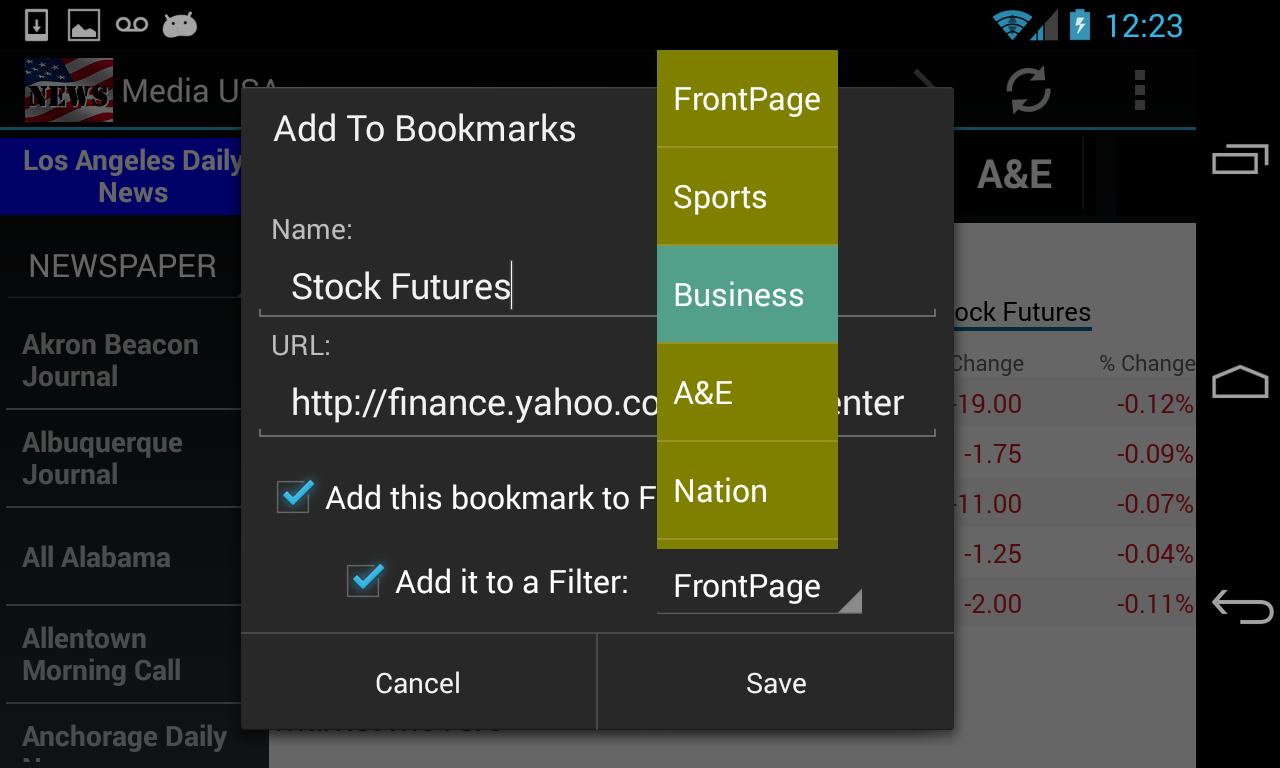
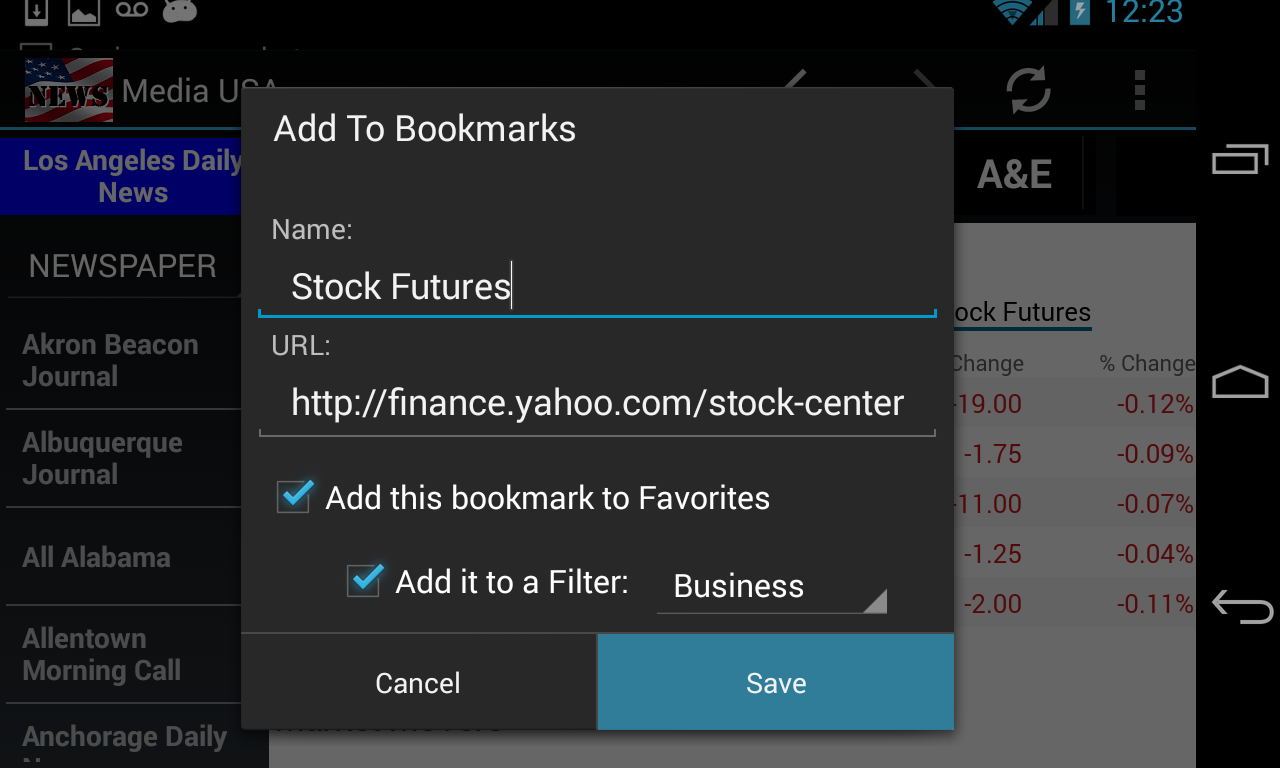
The Add To Bookmarks dialog gives you an option to add this bookmark to a
filter at the same time.
To be added to a filter, the news source should be on your Favorites
list first. So, click on "Add this bookmark to Favorites"
checkbox so you could "Add it to a Filter". Then
check the "Add it to a Filter" checkbox. Click on the Filter
spinner to select the desire topic. In this case is the
"Business" topic.
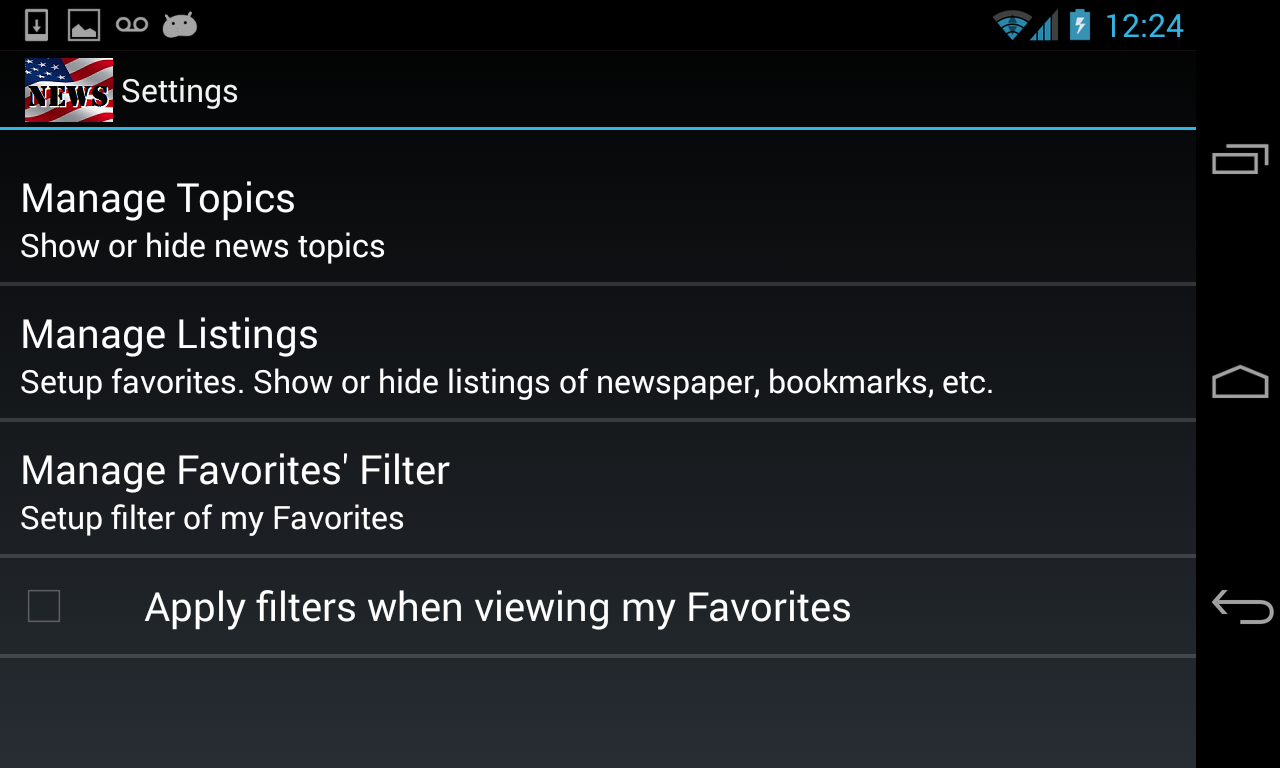
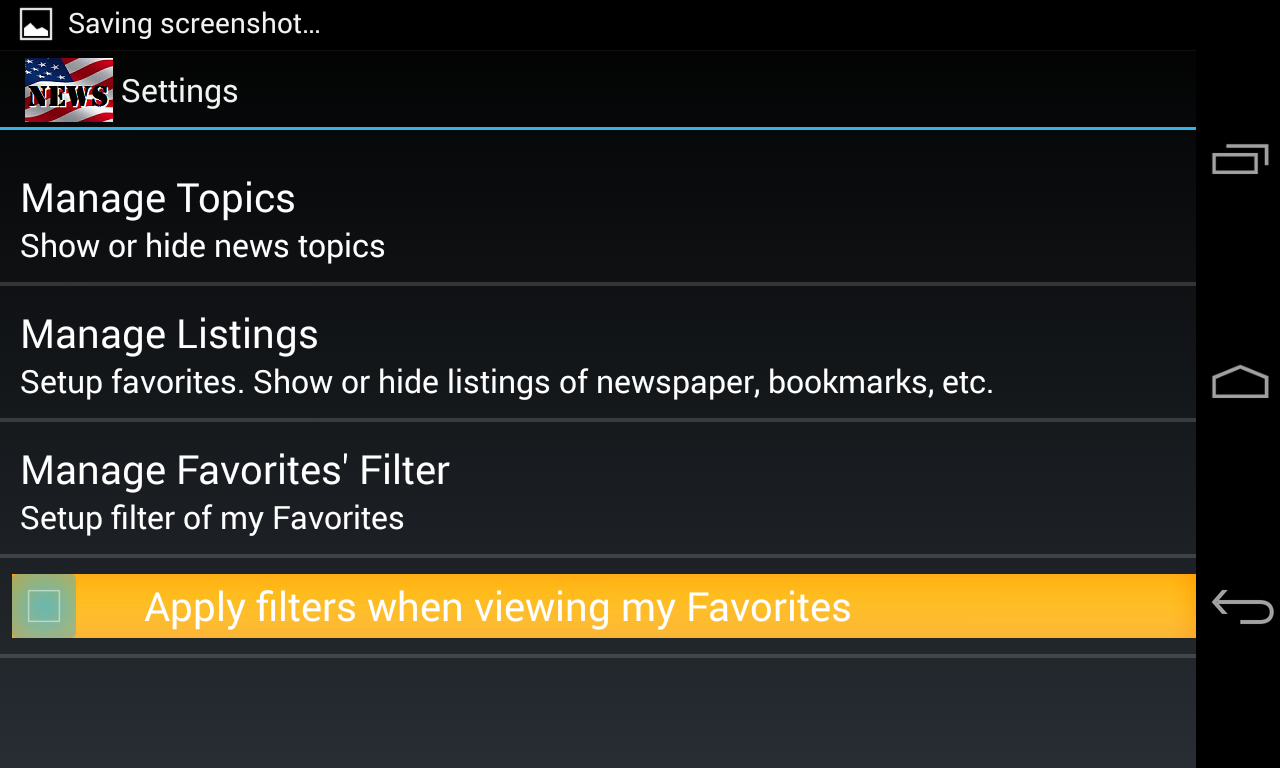
To see your filtered news, go to Settings to enable the view with the
filters by clicking on the "Apply filters when viewing my Favorites"
checkbox.
Then select FAVORITES from the new source type spinner to see your filtered
news.
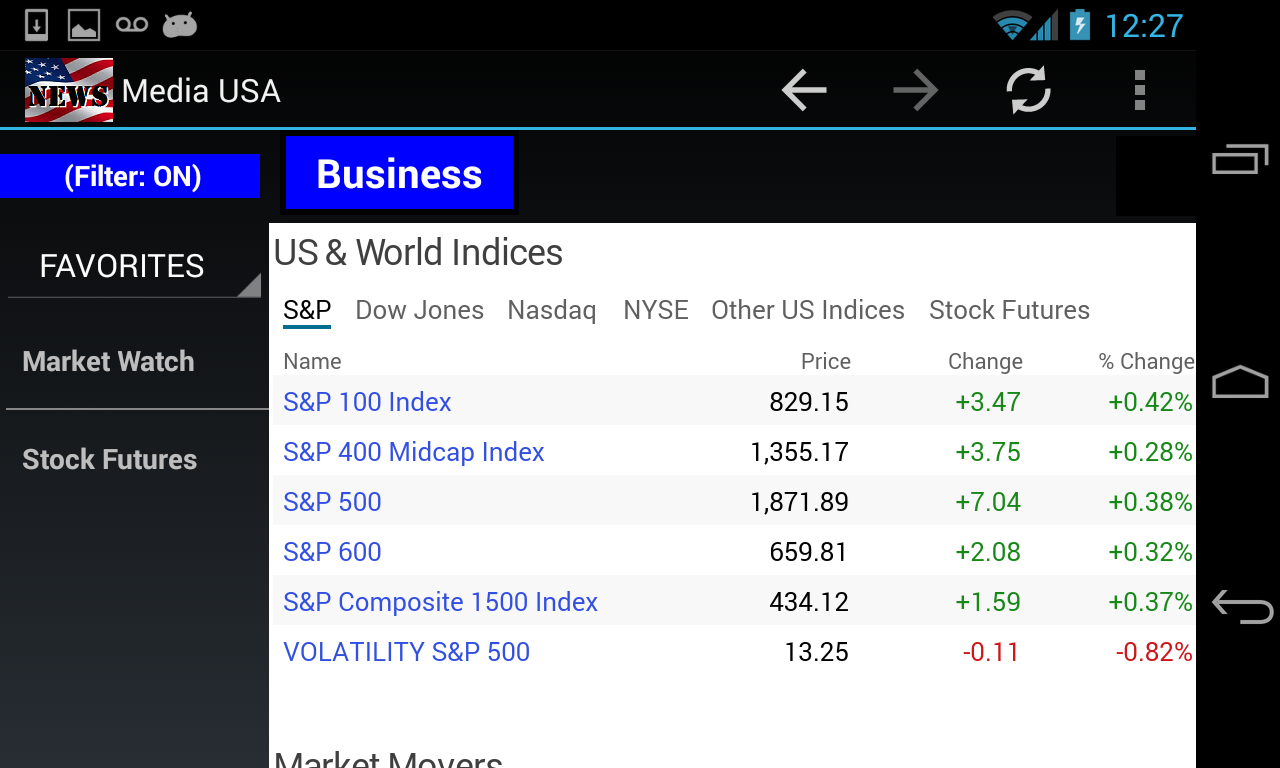
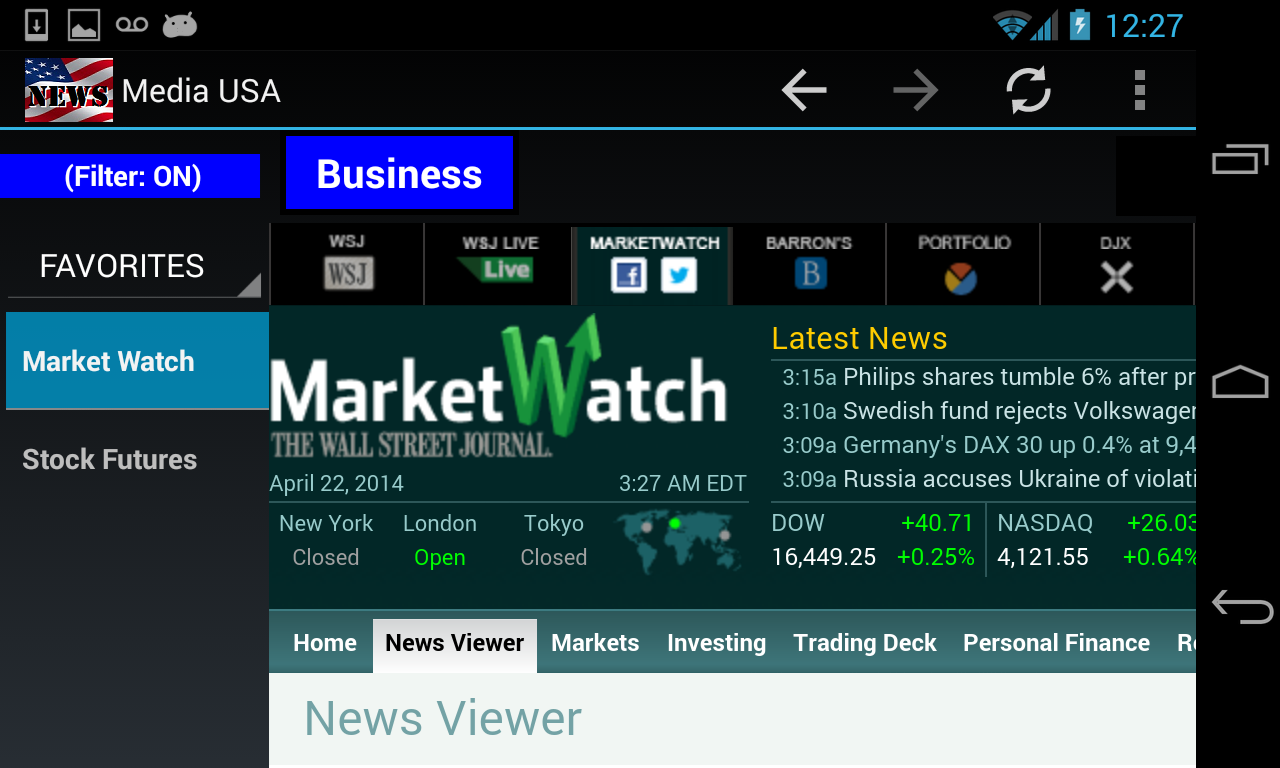
"(Filter: ON)" indicator shows up in your top-left corner of your
screen. The Topic menu bar on the top only shows "Business". It is the only Topic menu
because, so far, we only setup Business filter that has Market
Watch and Stock Futures.
To add another filter of different Topic, click on the news source
type (NEWSPAPER/NEWS NET/WORLD), select your news source of the topic
you want to add to your filter, then repeat the above steps.
If you know which news sources you want to add to your filters, you
could set them up all at once by using the Settings' Manage Listings & Manage
Favorites' Filters. Click here for more info......