If you know which news sources you want to add to your filters, then it is
faster to add them all at the same time.
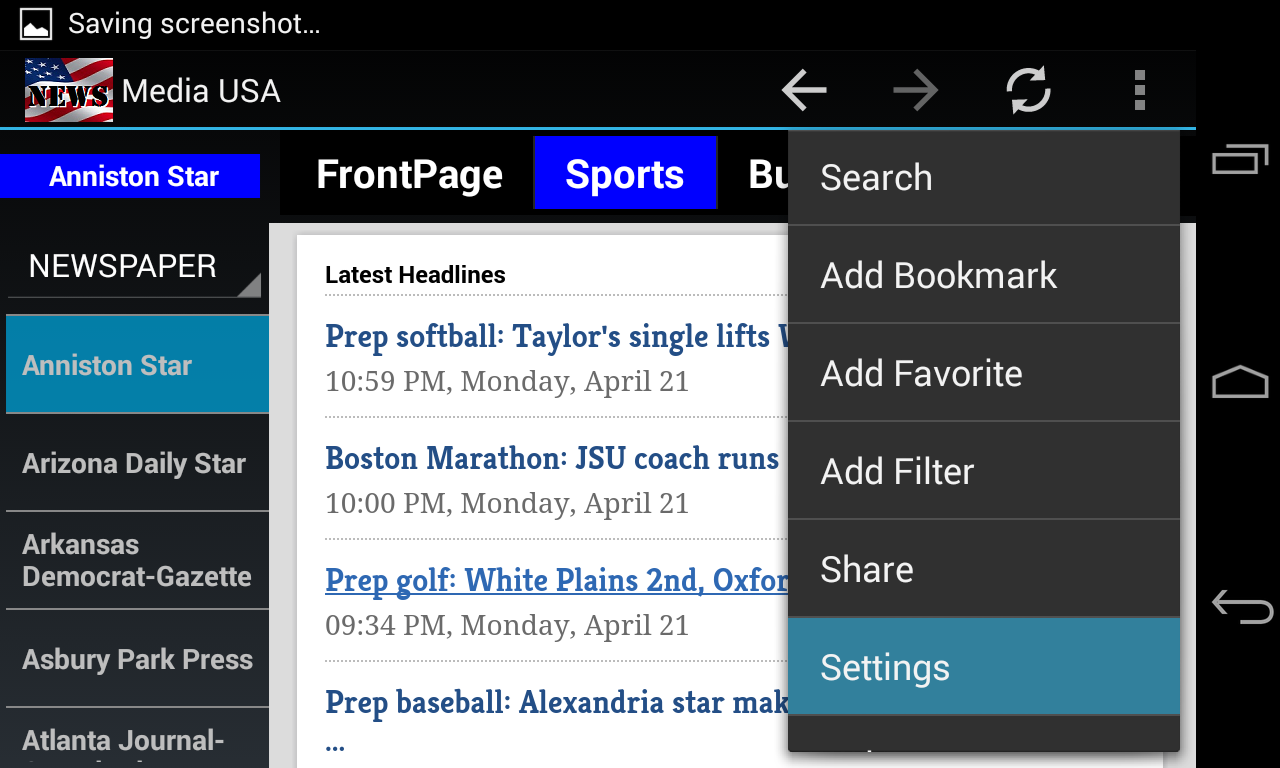
The example below shows how to add 3 filters, Sports, Business & Tech, by using a few news sources. Start with selecting Settings menu.
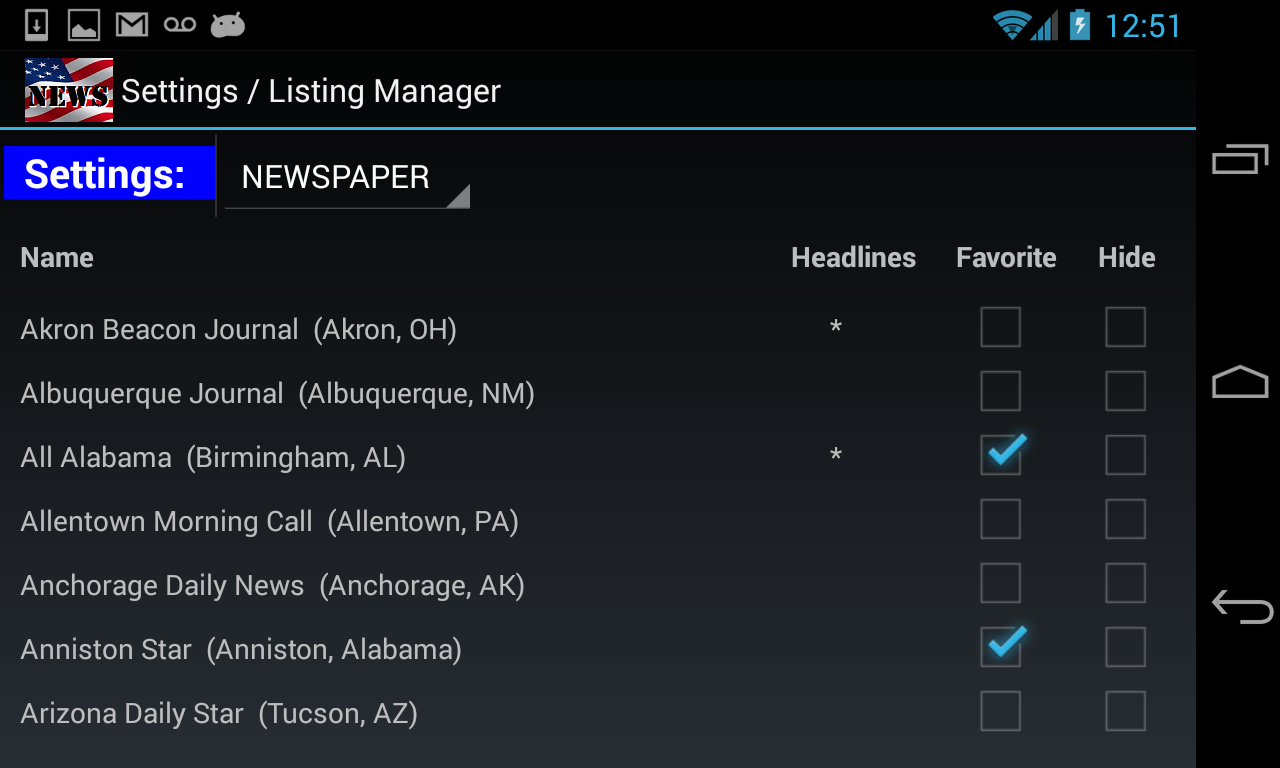
Tag your news sources as your Favorites first on Manage Listings page.
Let's say you want to add "All Alabama" and "Anniston Star" to
Sports filter. Make both of them as your Favorites by clicking
their Favorite checkboxes.
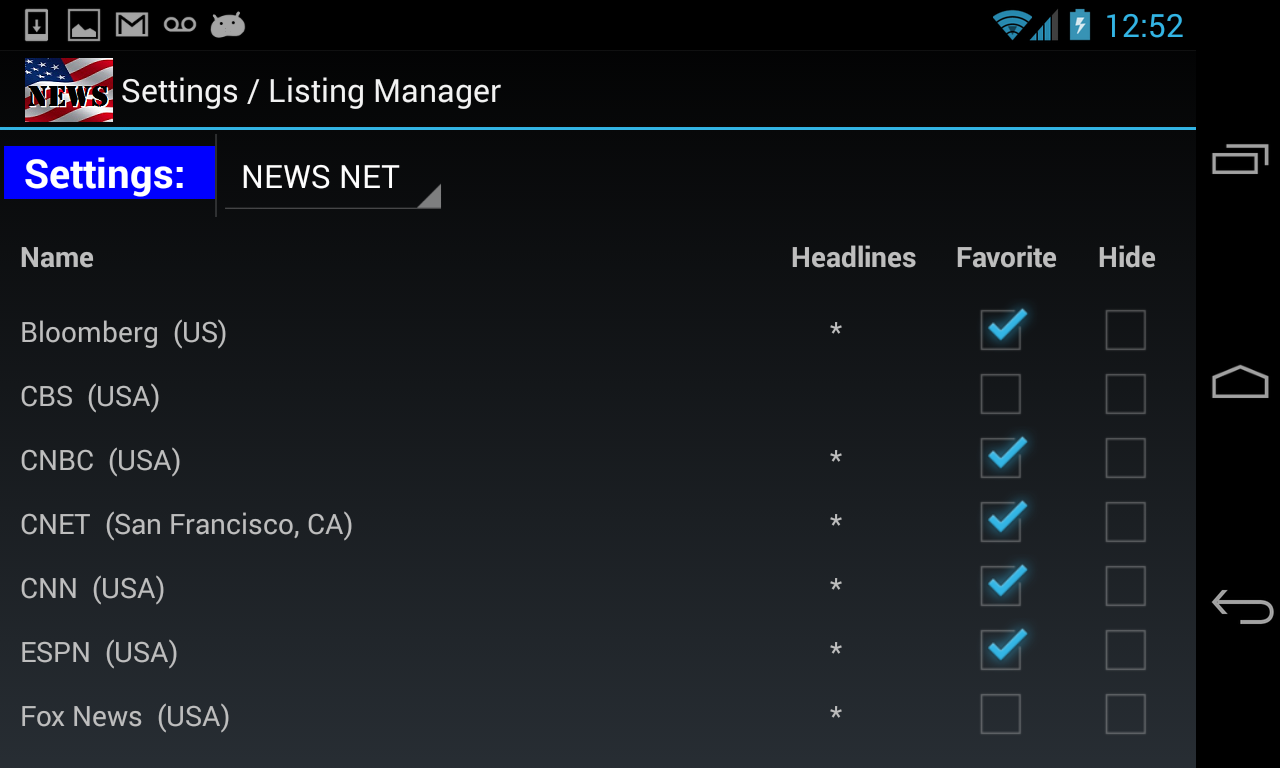
Select NEWS NET from "Settings:" dropdown to add a few sources for Sports, Business and Tech filters.
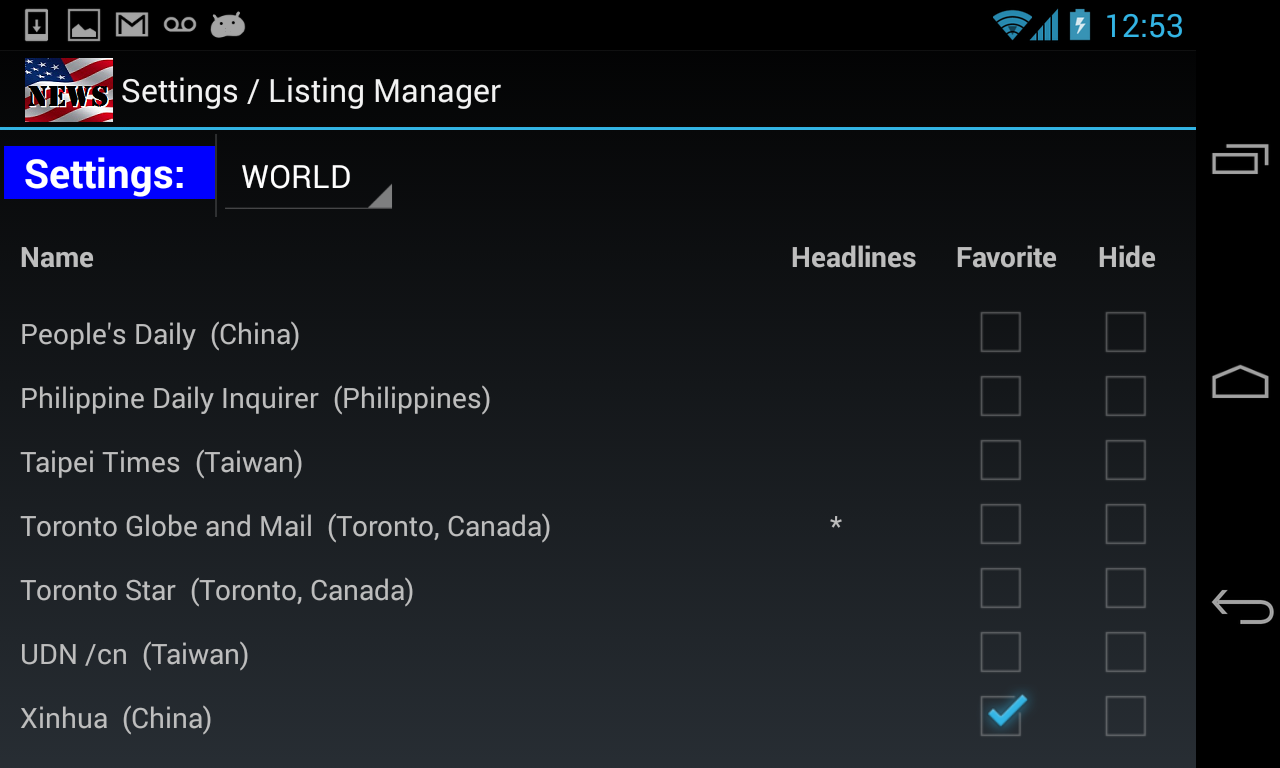
From WORLD listing, let's add another one, "Xinhua", for the Business filter.
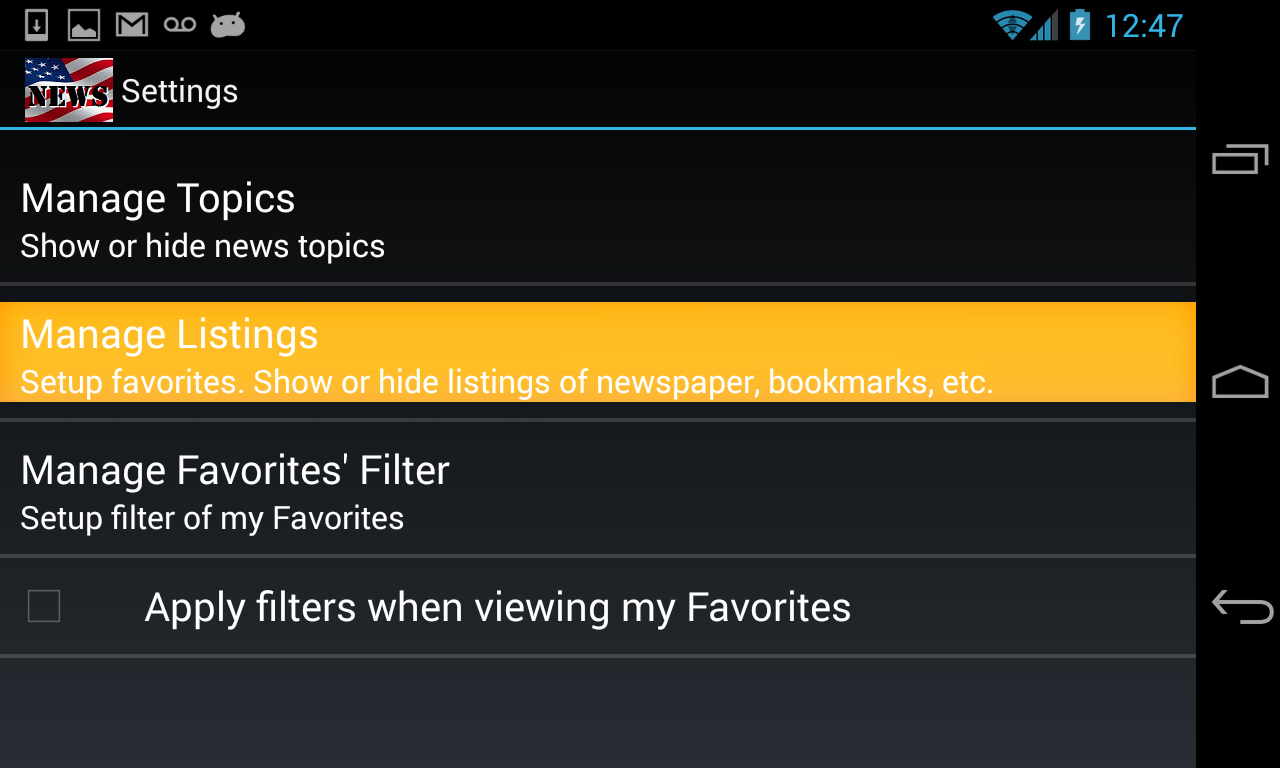
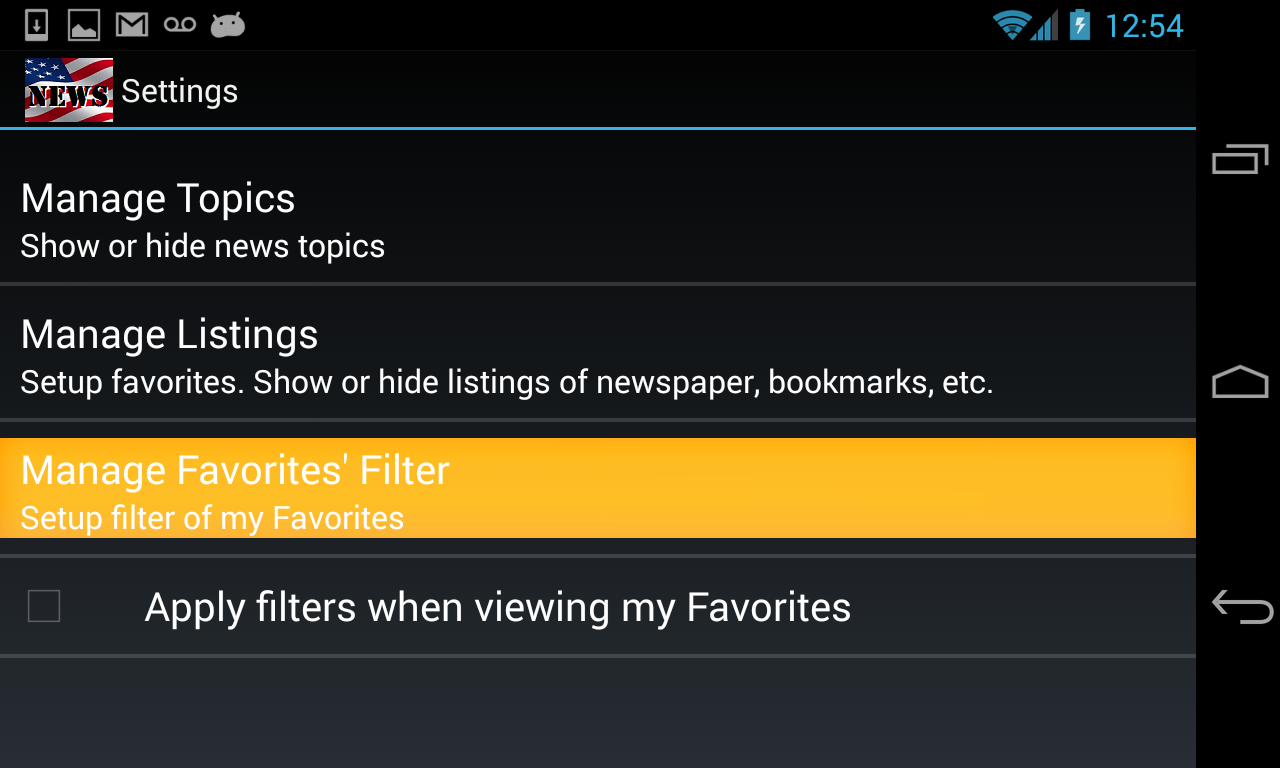
Exit to the main Settings page. Click on Manage Favorites' Filters.
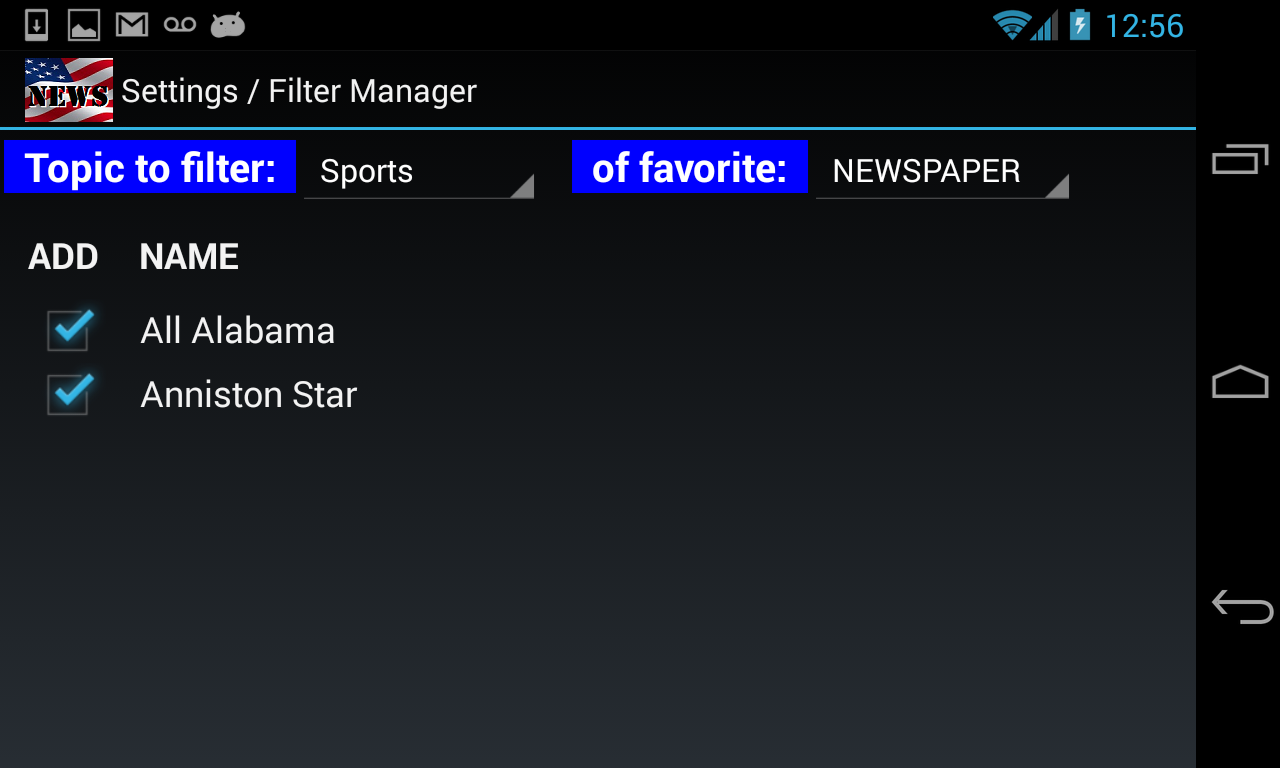
From Filter Manager page, select Sports from the "Topic to filter:" dropdown. Then add the news sources. Add NEWSPAPER sources to your filters.
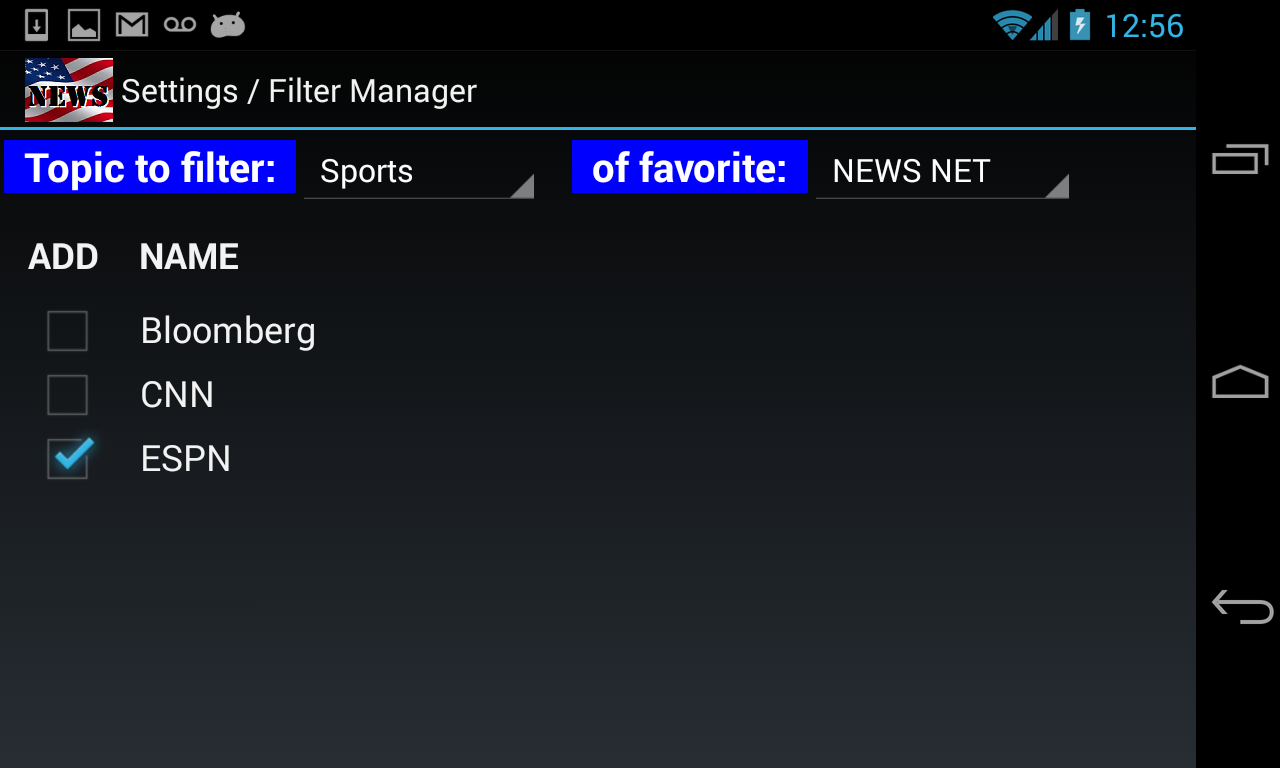
Select NEWS NET from "of favorite:" dropdown. Then add news source(s) to the same Sports filter.
Done with Sports filter. Now do the Business filter.
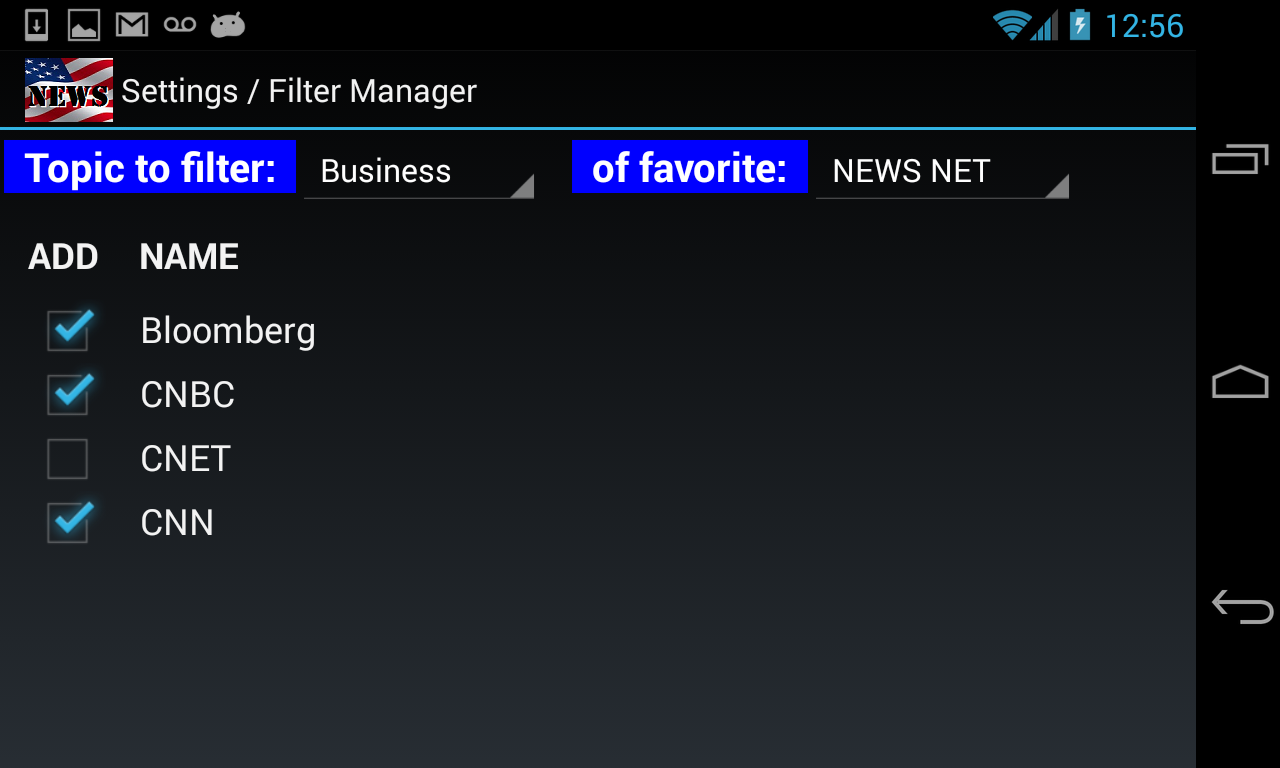
Select Business from "Topic to filter:" dropdown. From NEWS
NET list, add the sources.
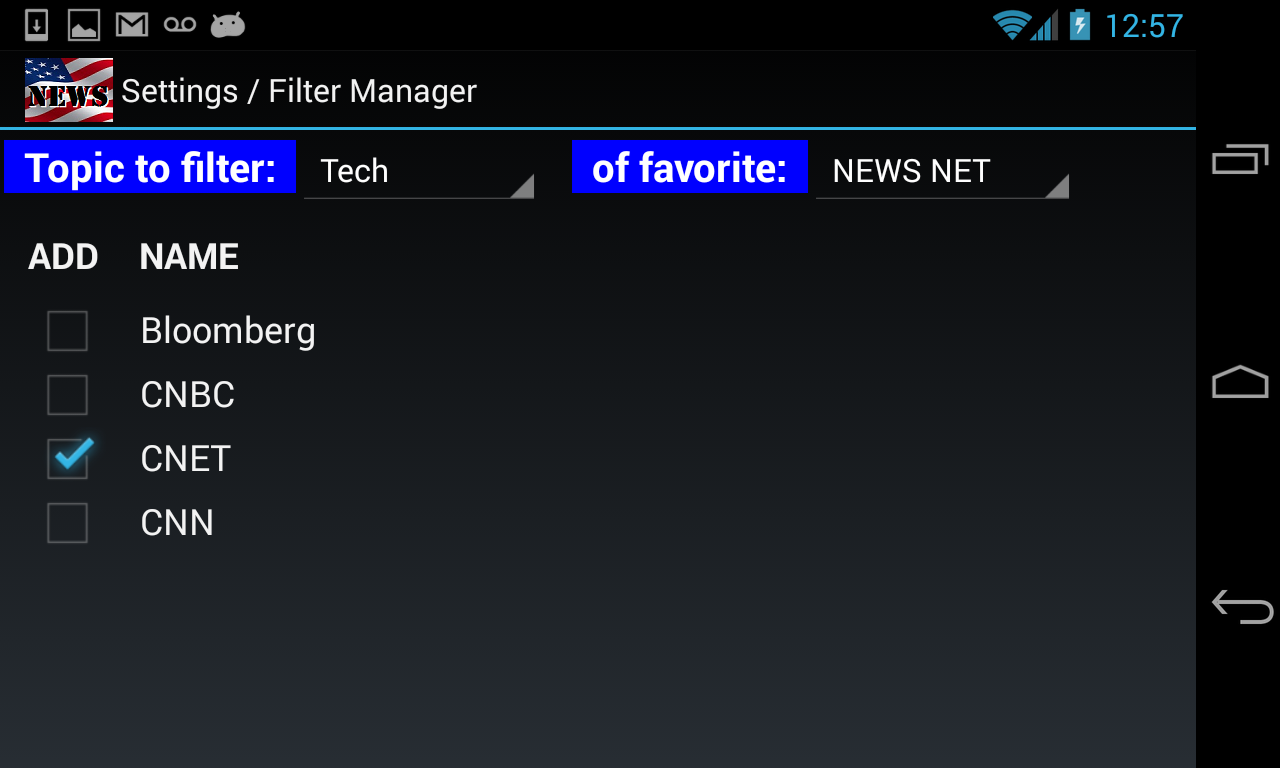
We are done with Business filter. Let's do the last one,
Tech. Use the same NEWS NET listing to add the source(s) to Tech
filter.
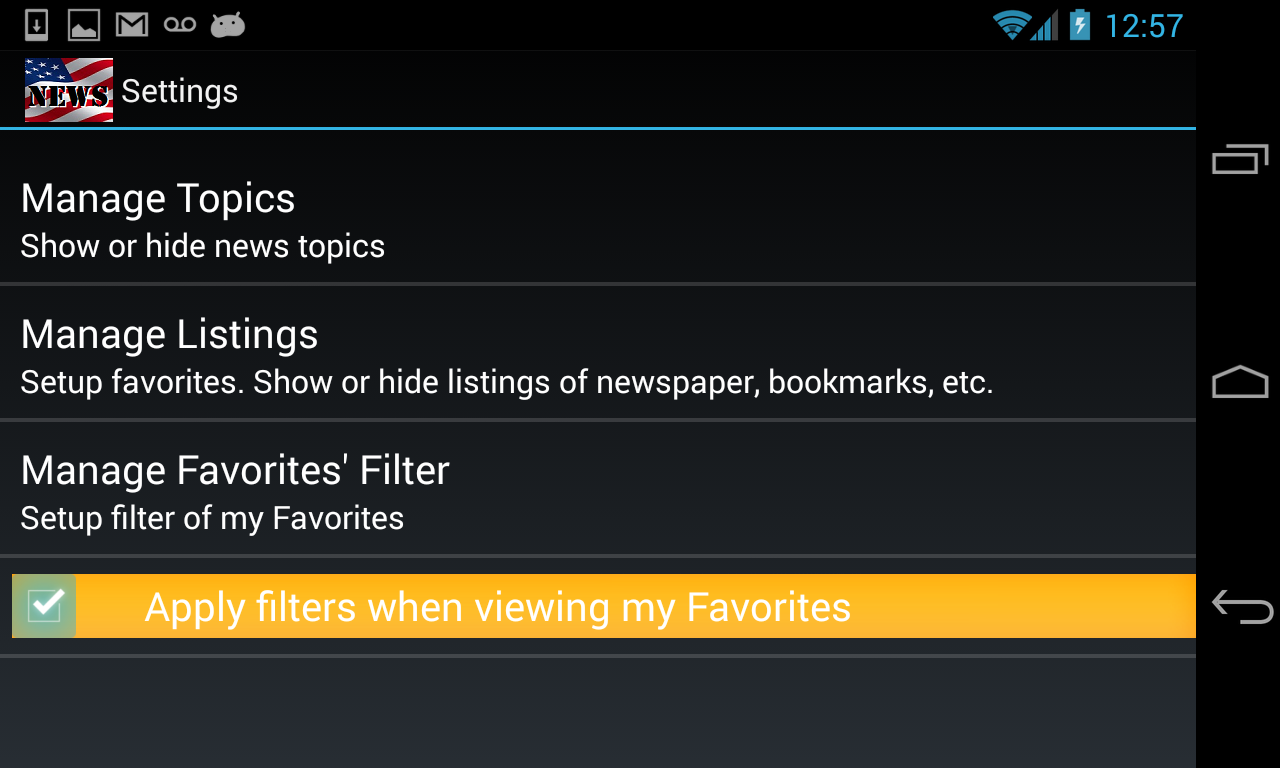
Exit to Settings main page. Select "Apply filters when viewing my Favorites" checkbox.
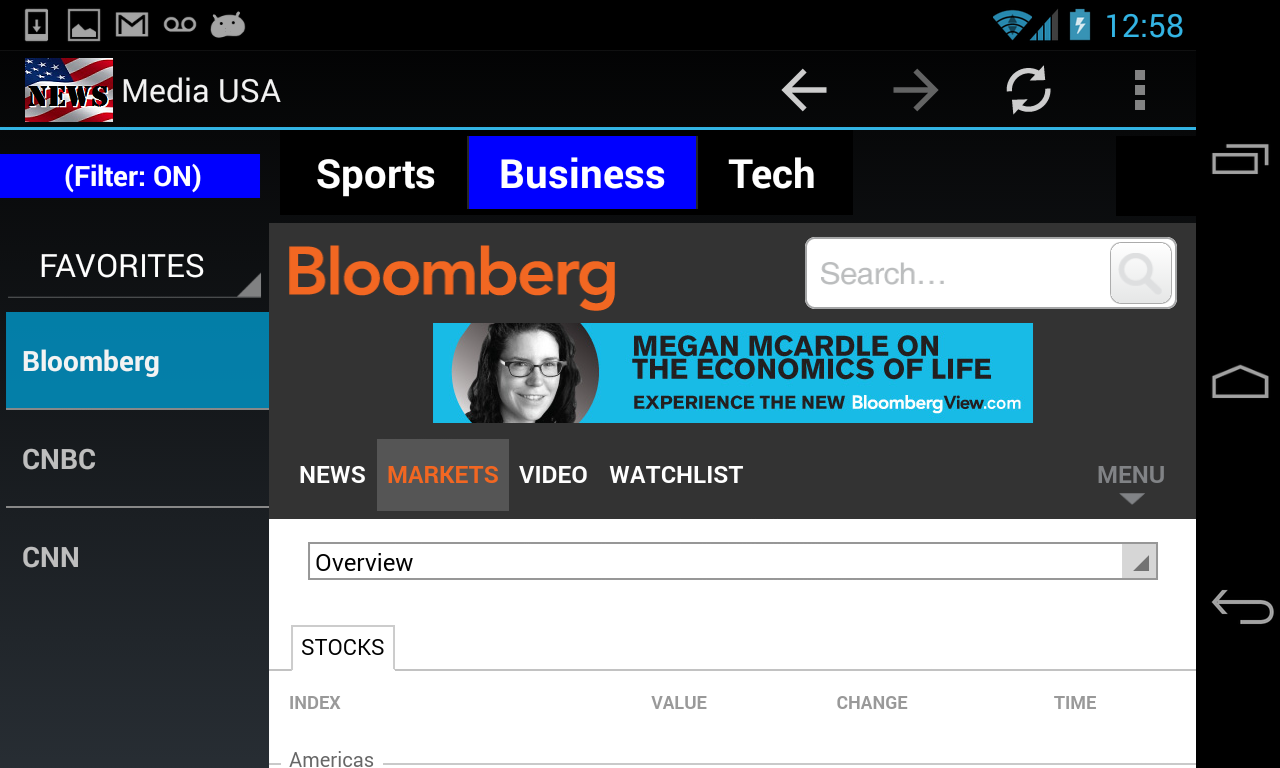
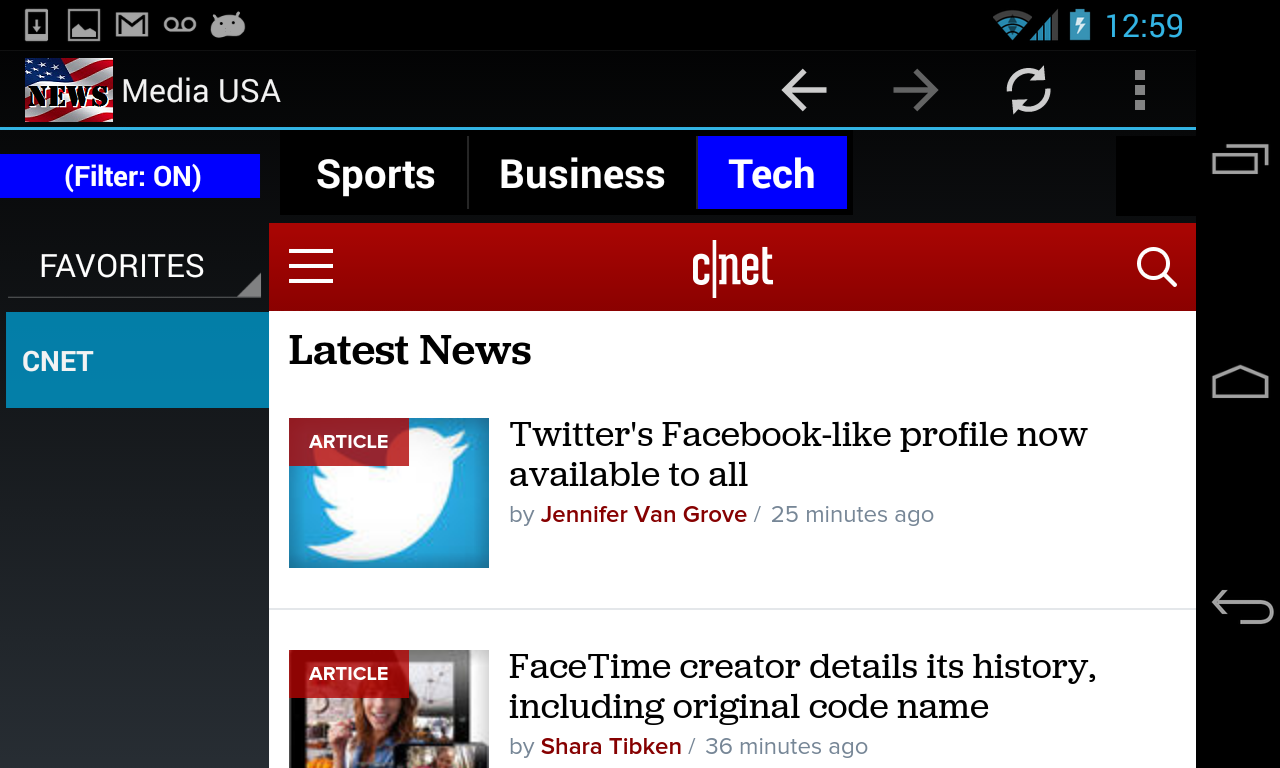
Exit Settings page. When we are in the viewing page, select FAVORITES to see the filtered news.
The Topic menu bar shows 3 Topics whose filters we just set up: Sports, Business & Tech.
When you click on the Business topic, you will see the filtered news sources.
Same with Tech filter. It only shows the source that we added.